 Proteside
 Installing the snippet
Copy the snippet from the dashboard and paste it as the first script in the head of your payment pages.
You install Proteside by copying a block of code from the dashboard and pasting it into the <head> of your checkout
pages. There's no npm package or store app: the same snippet works on any site where you control the checkout HTML.
Where to get the snippet
The snippet is in Settings → Pages & Domains, in the SDK installation card:
- SDK key: the store's key, in the format
pk_live_followed by 32 hexadecimal characters. It's a public key: it goes into your store's HTML and only identifies the store to the SDK. - Snippet: the ready-to-use block, already filled in with your key, release channel and active blocking rules. There's a tab for each platform: HTML, Next.js, Nuxt and WordPress.
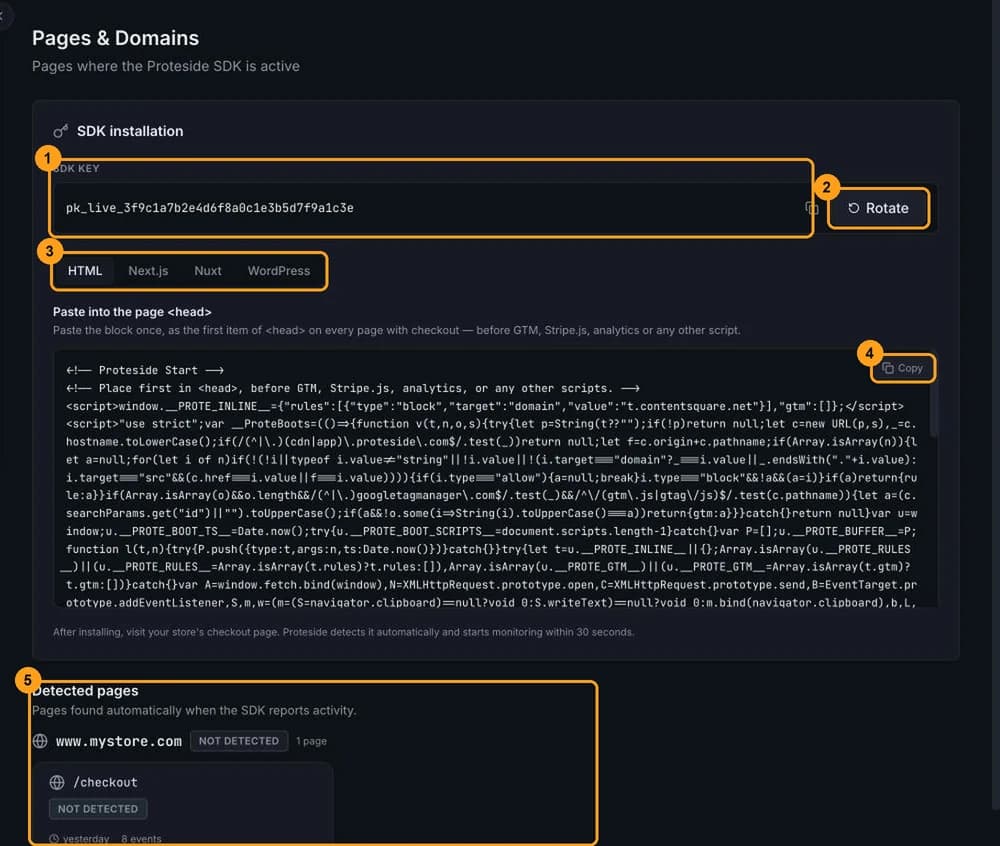
The store creation wizard also shows the snippet, in the installation step. That snippet always uses the stable
channel and doesn't include your rules. If you've already set up rules or Google Tag Manager containers, copy the
snippet from Pages & Domains.
Install
Open Pages & Domains
In the dashboard, go to Settings → Pages & Domains.
Copy the snippet for your platform
Choose the HTML, Next.js, Nuxt or WordPress tab and click Copy. For other platforms, use the HTML tab and follow Installing by platform.
Paste it as the first item in the head
Paste the whole block right after the opening <head> tag, before Google Tag Manager, Stripe.js, analytics and
any other script, on every checkout and payment page.
Publish and open the checkout
Publish the change and open the checkout page in your browser. Then follow Verify the installation.
What's in the snippet
This is the format of the HTML snippet the dashboard generates. The bootstrapper's content is abbreviated here: it's about 4.3 KB of minified JavaScript and changes between versions. Always copy the full block from the dashboard.
<!-- Proteside Start -->
<!-- Place first in <head>, before GTM, Stripe.js, analytics, or any other scripts. -->
<script>/* bootstrapper: full content copied from the dashboard */</script>
<script async src="https://cdn.proteside.com/v1/shield.js"
        data-key="pk_live_3f9c1a7b2e4d6f8a0c1e3b5d7f9a1c3e"
        data-api="https://app.proteside.com/api/sdk"></script>
<!-- Proteside End -->| Part | Role |
|---|---|
Inline <script> | The bootstrapper. Runs immediately, with no network access, and starts observing the page. |
<script async src=".../shield.js"> | The SDK. Loads from the CDN without blocking the page. |
data-key | The store's SDK key. Required. |
data-api | The Proteside API address. The dashboard always fills in the default value. |
The comments inside the snippet are in English whatever language you use the dashboard in. That's expected.
Snippet with inline rules
If the store has active blocking rules by domain or URL, or a list of allowed Google Tag Manager containers, the
dashboard writes that configuration at the start of the bootstrapper's own <script>:
<!-- Proteside Start -->
<!-- Place first in <head>, before GTM, Stripe.js, analytics, or any other scripts. -->
<script>"use strict";window.__PROTE_INLINE__={"rules":[{"type":"block","target":"domain","value":"cdn-suspeito.example"}],"gtm":["GTM-AB12CD3"]};var __ProteBoots=/* rest of the bootstrapper, copied from the dashboard */</script>
<script async src="https://cdn.proteside.com/v1/shield.js"
        data-key="pk_live_3f9c1a7b2e4d6f8a0c1e3b5d7f9a1c3e"
        data-api="https://app.proteside.com/api/sdk"></script>
<!-- Proteside End -->
This part lets the bootstrapper block scripts from the very first byte of the page, without waiting for the remote configuration.
Inline rules are frozen in the HTML
The window.__PROTE_INLINE__ part holds the rules as they were when you copied the snippet. Once the SDK starts,
the remote configuration takes over, but until then the page uses the pasted version. A rule you removed in the
dashboard keeps blocking during that window, and a new rule only blocks from the first byte after you paste the
snippet again. Re-paste the snippet whenever you change blocking rules or Google Tag Manager containers.
Don't modify the snippet
- Don't separate the bootstrapper from
shield.jsor swap their order. - Don't replace the inline bootstrapper with an external
<script src>. It must run synchronously. - Don't add
async,deferortype="module". Withtype="module", the SDK doesn't initialize. - Exclude the snippet from optimization plugins that combine, defer or asynchronously load JavaScript.
Why it must be the first script in the head
The bootstrapper only observes what happens after it. A script that runs earlier can keep the original references
to fetch or addEventListener and escape observation.
If any script runs before the bootstrapper, the SDK flags the installation as out of order: it sends the
INSTALLATION_ORDER_WARNING event, which becomes an alert in the dashboard, and
Proteside.getStatus().installationOrderValid becomes false. Protection continues, but with partial coverage.
Scripts written into the page's HTML run before the SDK loads and can't be stopped in the browser. To block one of them, remove the tag from the HTML or the theme. Scripts inserted by JavaScript, including tags fired by Google Tag Manager, go through the bootstrapper and are blocked before they run.
Older snippets put window.__PROTE_INLINE__ in a separate <script> tag before the bootstrapper. They keep working:
from SDK 1.1.2 on, that tag doesn't count as a preceding script, as long as it only contains the configuration
assignment. See Troubleshooting.
Which pages to install it on
Install the snippet on the pages where the customer enters or receives payment details:
- the checkout, including the shipping and payment steps when they're separate pages;
- the pages that show the Pix QR code or copy-and-paste code, the boleto or the crypto address;
- the order confirmation page (for example,
/thank-youor/success), if you accept cards. The SDK uses this page to confirm a card payment when it can't observe the provider's response.
If your checkout is a single-page application (SPA), install the snippet once in the base HTML and notify the SDK of
route changes with Proteside.pageChanged().
Installing it site-wide
You can paste the snippet into your site's global layout. Here's what changes:
- The SDK behaves the same on every page it's on. No per-page configuration reaches the browser.
- Every page shows up in Pages & Domains and enters the Scripts inventory, which increases the number of scripts to review.
- Every pageview makes the SDK's extra requests (configuration, events and a read of the page's own headers). See Performance and compatibility.
- As long as the store has no payment pages registered, all pageviews with the SDK count as payment page pageviews in your plan usage. Payment pages are registered through the API, not the dashboard.
For PCI DSS 4.0, requirements 6.4.3 and 11.6.1, what matters are the payment pages. Prefer installing only on them.
Stable and latest channels
The release channel defines which shield.js build the snippet loads. You choose it in
Settings → Payment protection → SDK release channel.
| Channel | shield.js URL | When it's updated | CDN cache |
|---|---|---|---|
stable (default) | https://cdn.proteside.com/v1/shield.js | with each validated release | 1 hour |
latest | https://cdn.proteside.com/v1/latest/shield.js | with each publish | 5 minutes |
There are no versioned URLs: you can't pin a specific SDK version.
Changing the channel requires re-pasting the snippet
The Payment protection screen says you don't need to reinstall when you change the channel. But the shield.js URL
is written into the snippet: whatever is already pasted keeps loading the old channel. After changing the channel,
copy the snippet again from Pages & Domains and publish it. When the store uses latest, the snippet shows the
latest channel badge.
shield.js updates itself through the CDN. The bootstrapper, being inline, only changes when you re-paste the
snippet.
Rotating the SDK key
If you need a new key, use Rotate in Pages & Domains and type ROTATE to confirm. Only owners and admins can
complete the rotation. The old key keeps working for 24 hours. Within that window, paste the updated snippet on
every page: after that, the old key is no longer accepted and events from those pages are lost without warning.