 Proteside
 Configuration
Snippet attributes, remote configuration, monitor and block modes, pausing and channels.
Almost all SDK configuration happens in the dashboard and reaches the browser through the remote configuration. The snippet only carries the store's key and, when there are any, the inline rules. This page shows where each setting comes from and what it actually does on the checkout.
Snippet attributes
shield.js reads the data-* attributes on its own <script> tag:
Prop
Type
There are no other attributes. The protection mode and the channel are not set by attribute: the mode comes from
the dashboard, and the channel is the shield.js URL itself. The data-safe-url attribute, from older versions of
the snippet, is ignored.
Remote configuration
On startup, the SDK fetches the store's configuration from https://app.proteside.com/api/sdk/config. When the
layers disagree, this order of precedence applies:
- Remote configuration (what's saved in the dashboard);
- Snippet (
data-*attributes andwindow.__PROTE_INLINE__inline rules); - SDK defaults.
| Behavior | Detail |
|---|---|
| Timeout | 2 seconds. If the response doesn't arrive, the SDK continues with the snippet and the defaults. |
| Failure | An invalid key, an error or no network doesn't break the page: the SDK continues with its local defaults. |
| Detection start | The detection modules only start after the response (or the timeout). Until then, the bootstrapper keeps track of what happens and the SDK processes it afterwards. |
| Cache | The response may be cached for 60 seconds in the browser and on the CDN. |
Changes can take more than 60 seconds
The dashboard says changes reach the SDK within 60 seconds. The CDN may keep serving the old response for a few
more minutes while it fetches the new one, especially on low-traffic stores. To test a change, wait a few minutes
and check with Proteside.getStatus().
What comes from the dashboard
Most of it is in Settings → Payment protection:
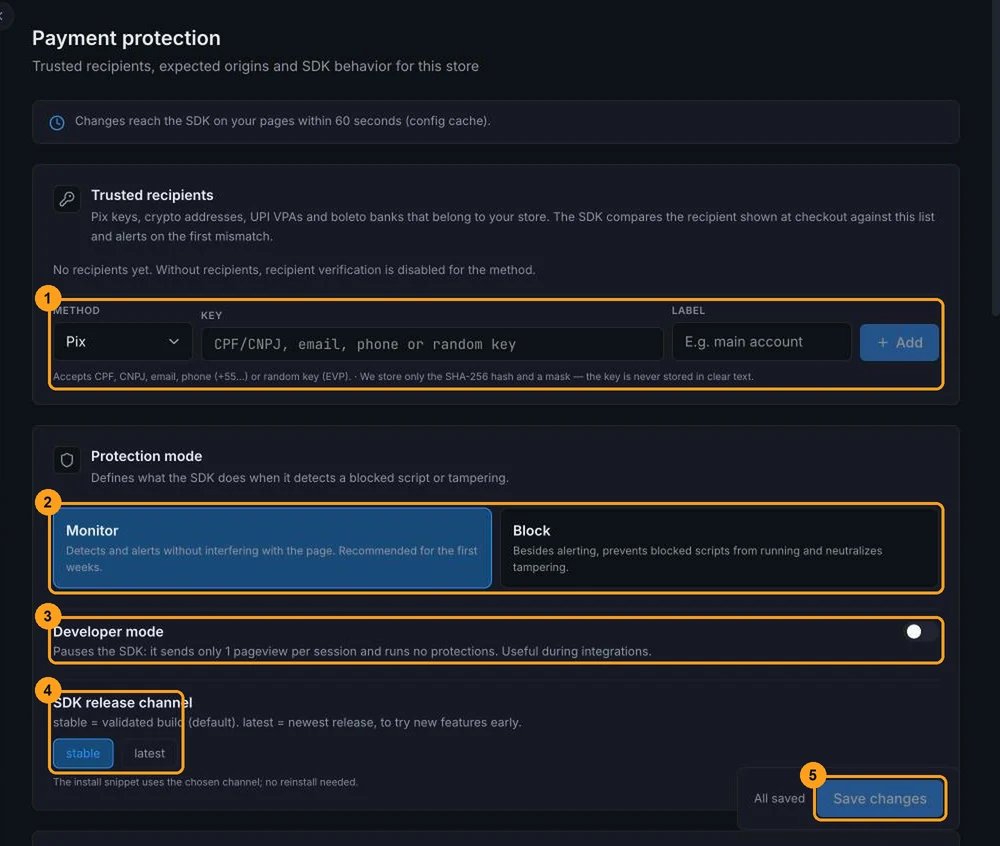
| Dashboard setting | Effect on the SDK |
|---|---|
| Trusted recipients | Hashes of the store's Pix keys, crypto addresses, UPI VPAs and boleto banks. See Payment integrity and Pix. |
| Protection mode | Monitor or Block. See below. |
| Developer mode | Pauses the SDK. See Pause and developer mode. |
| SDK release channel | Informational only, as far as the SDK is concerned. The effective channel is the URL pasted in the snippet. See Channels. |
| Expected iframe origins | Hosts of legitimate payment iframes. With the list filled in, the SDK alerts on payment provider iframes outside it, iframes overlaid on the expected ones, and card fields you can type into outside the iframe. |
| Allowed GTM containers | With the list filled in, Google Tag Manager containers outside it are blocked. See the warning below. |
| Allowed service workers | With the list filled in, service workers outside it are reported and, in Block mode, removed. |
| Payment methods | Methods shown as monitored. Doesn't turn detection off. See Payment methods. |
| Sensitive fields | Selectors for the fields watched for keyloggers and overlays. |
| Calibration (seconds) | Learning time after the page loads (10 to 120 s, default 30). |
| Overlay check (ms) | Interval between checks for overlaid elements (minimum 500, default 2000). |
| Installation order | Warn (alert) sends INSTALLATION_ORDER_WARNING; Silent doesn't send the event, but installationOrderValid stays false. |
The rules in Rules (block or allow by Domain or Script URL) also come in the remote configuration. Inactive rules aren't sent. Empty lists mean "no restriction".
Content hash rules aren't applied in the browser
The Rules screen offers the Content hash target, but the SDK ignores those rules: they don't block any script on the checkout. To stop a script, use a rule by Domain or Script URL.
Sensitive fields
By default, the SDK watches these selectors:
#card-number, #card-cvv, #card-expiry, #card-name,
[data-proteside-sensitive],
input[autocomplete="cc-number"],
input[autocomplete="cc-csc"]
To add a field of your own without touching the dashboard, mark it with the data-proteside-sensitive attribute:
<input id="cpf" name="cpf" data-proteside-sensitive />If you turn off Use Proteside's default list and enter your own list, it replaces the default one. Include
[data-proteside-sensitive] in your list if you want the attribute to keep working.
Monitor mode and block mode
You choose the mode in Payment protection → Protection mode, and it reaches the SDK through the remote configuration.
What happens in either mode
Rules and the GTM list also block in Monitor mode
The screen describes Monitor mode as "without interfering with the page" and says containers outside the list are blocked "in Block mode". In the browser, blocking rules (by domain or URL) and the Allowed GTM containers list block scripts in both modes. If you only want to observe, don't create blocking rules and leave the GTM list empty.
- A script inserted by JavaScript that matches a blocking rule never makes it into the page. The SDK sends
SCRIPT_BLOCKED. - With the GTM list filled in,
googletagmanager.com/gtm.jsandgoogletagmanager.com/gtag/jswith an ID outside the list are stopped. The SDK sendsGTM_CONTAINER_BLOCKED. - An Allow rule that matches the script overrides blocking rules.
cdn.proteside.comandapp.proteside.comare never blocked.
The GTM list also blocks GA4 and Google Ads
The list only accepts IDs in the GTM-XXXXXXX format, but blocking also applies to gtag/js. With the list filled
in, any Google Analytics 4 (G-…) or Google Ads (AW-…) tag loaded by JavaScript, including by GTM itself, is
blocked, and there's no way to add those IDs to the list. Before turning the list on, check whether the store uses
GA4 or Google Ads loaded this way.
What changes in Block mode
Besides alerting, the SDK tries to neutralize the tampering:
| Detection | Action in Block mode |
|---|---|
SCRIPT_INJECTION of an unknown script | Removes the script tag after detecting it. |
FORM_ACTION_HIJACK | Restores the form's original action. |
OVERLAY_DETECTED | Removes the overlaid element. |
PIX_TAMPERED, UPI_TAMPERED, QR_TAMPERED, BOLETO_TAMPERED, CRYPTO_ADDRESS_SWAP (altered text) | Rewrites the text with the original value it captured. |
| Recipient not on the trusted list | Replaces the text it read with ⚠︎ and marks the element with data-proteside-blocked="untrusted_recipient". |
CLIPBOARD_HIJACK | Writes the original value back to the clipboard. |
SERVICE_WORKER_BLOCKED | Unregisters the service worker. |
These detections only alert, in either mode: EXFILTRATION_ATTEMPT, KEYLOGGER_DETECTED,
WEBSOCKET_EXFILTRATION, IFRAME_REPLACED, IFRAME_UNEXPECTED, CARD_FIELD_OUTSIDE_VAULT, AMOUNT_TAMPERED,
SCRIPT_MODIFIED and FIELD_ACCESS.
Removing a script doesn't undo what it already ran
Once a script has entered the page, removing the tag doesn't cancel its execution. Only blocking before insertion, done by the bootstrapper using the rules, actually prevents the script from running. That's why, for an unwanted script, you should create a blocking rule instead of relying on Block mode alone.
In Block mode, a wrong rule can break the checkout. Start in Monitor, review alerts for a few weeks, and test Block mode on a low-traffic page before turning it on for the whole store.
Pause and developer mode
The SDK is paused when:
- Developer mode is on in Payment protection;
- the subscription isn't current or the store isn't active.
While paused, the SDK sends a single PAGEVIEW flagged as paused on every page load (the screen says "1 pageview
per session") and doesn't start any detection module. Proteside.getStatus().paused is true, and SDK Health
shows SDK paused (developer mode).
Inline rules still apply in developer mode
The bootstrapper applies the rules written into the snippet (window.__PROTE_INLINE__) before it knows the store
is paused. With developer mode on, scripts that match those rules are still blocked, but with no events in the
dashboard. If you need to turn off a block during integration, remove the rule and paste the snippet again.
There's also a local pause, called by the page itself with Proteside.pause(). It only
applies to that page load.
Channels
The release channel (stable or latest) is defined by the shield.js URL in the snippet. See
Stable and latest channels.