 Proteside
 Payment protection
Register trusted recipients, choose between monitoring and blocking, and adjust the lists the SDK uses on the store's checkout.
Settings → Payment protection defines how the SDK behaves on the selected store's checkout. Changes reach your pages through the SDK's remote configuration, without touching your site, with one exception: the release channel.
This page explains each setting from the point of view of someone using the dashboard. The technical details are in Configuration.
Before you start
- Only owners and admins can change this screen. The other roles see everything, but without the edit buttons, and the banner at the top says "Only owners and admins can change these settings."
- The screen says changes reach the SDK within 60 seconds. On stores with little traffic, the old response may keep being served for a few more minutes. To test a change, wait a few minutes and reload the checkout.
- Trusted recipients are saved immediately. Everything else only takes effect after Save changes.
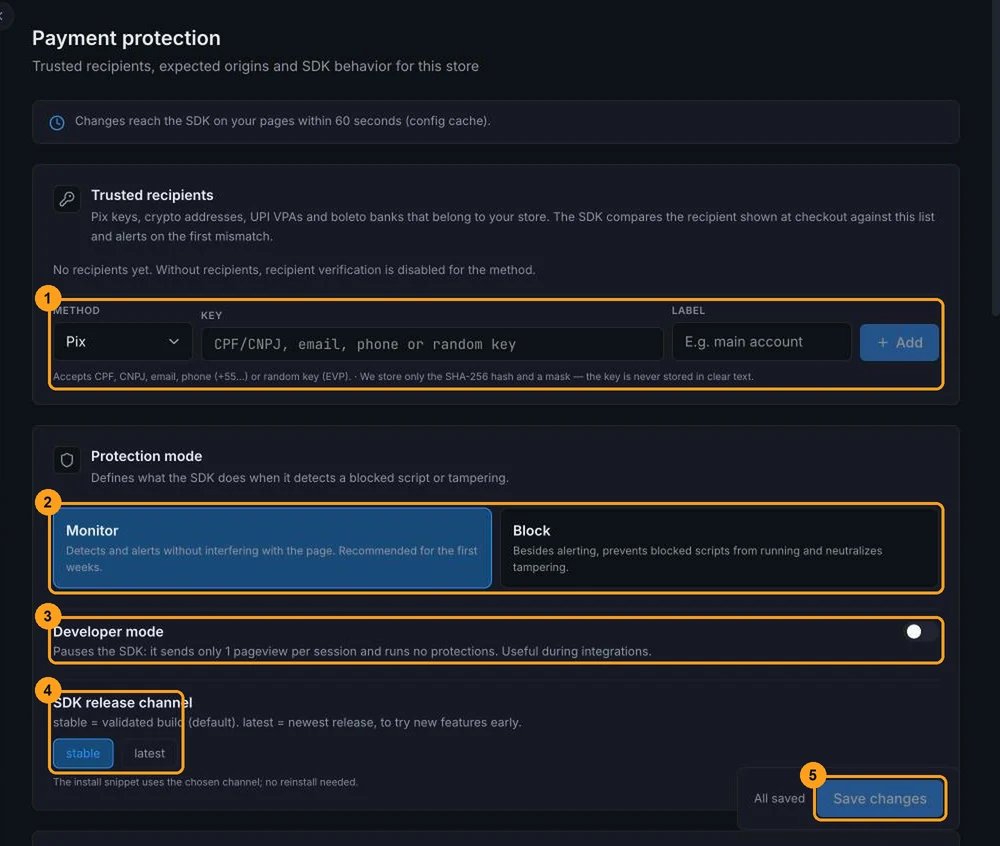
Trusted recipients
These are the keys that receive your store's payments. The SDK compares the recipient of every Pix code, crypto address, UPI VPA or boleto shown on the checkout with this list and alerts on the first mismatch. If no recipient is registered for a method, this check is turned off for that method.
Choose the method
In the Trusted recipients area (1), choose the Method: Pix, Bitcoin, Ethereum, UPI or Boleto (bank).
Enter the key
- Pix: CPF, CNPJ, email, phone number (
+55…) or random key. - Bitcoin: a
bc1q…,1…or3…address. - Ethereum: a
0xaddress with 40 hexadecimal characters. - UPI: a VPA in the
name@bankformat. - Boleto (bank): the issuing bank's code (3 digits) or the full digit line.
If you want, fill in a Label (up to 80 characters), for example "main account".
Click Add
The recipient is saved immediately and appears in the table with the key masked.
Proteside stores only the SHA-256 hash and a mask of the key: the full key is never stored. That's why you can't view or edit the key after it's saved. To replace it, register the new one and remove the old one.
In the table, use the Active switch to turn a recipient off without deleting it, or the trash icon to remove it.
You can also get here from the Register button on the Payment integrity screen, which opens the form with the right method already selected. How the check works on the checkout is explained in Trusted recipients.
Protection mode
The Protection mode (2) defines what the SDK does when it detects tampering.
| Mode | What happens |
|---|---|
| Monitor (recommended for the first weeks) | The SDK detects and raises alerts, without fixing anything on the page. |
| Block | Besides alerting, the SDK tries to undo the tampering: it removes injected unknown scripts, restores the original destination of forms, removes elements overlaid on the checkout, rewrites tampered Pix, boleto and crypto codes, restores the clipboard and removes service workers that aren't on the list. |
Rules and the GTM list also block in Monitor mode
The screen describes Monitor as "without interfering with the page". In practice, blocking Rules and the allowed GTM containers list prevent scripts from loading in both modes. If you only want to observe, don't create blocking rules and leave the GTM list empty.
Test before turning on Block
In Block mode, a wrong rule can break the checkout. Stay in Monitor for a few weeks, review the alerts and the scripts, and test Block on a low-traffic page before turning it on.
Some detections, such as attempts to send data out, keyloggers and tampered amounts, only raise alerts in either mode. The full list is in Monitor mode and block mode.
Developer mode
Developer mode (3) pauses the SDK: it sends only one visit record per page load and doesn't run any protection. Use it during integrations and tests.
Don't forget to turn it off
With developer mode on, the store is unprotected and SDK Health shows the SDK as paused. The blocking rules written into the snippet still apply, but without generating any events in the dashboard.
SDK release channel
The SDK release channel (4) chooses which SDK version the store loads:
stable(default): the validated version.latest: the most recent release, to try new features early.
Changing the channel requires pasting the snippet again
The screen says no reinstall is needed. But the channel is written into the SDK URL inside the snippet: the snippet you've already published keeps loading the old channel. After changing the channel and saving, copy the snippet again in Pages & Domains and publish it.
Save
When there are pending changes, the bar in the bottom-right corner shows Unsaved changes. Click Save changes (5). The button is disabled if any value is outside the allowed range (red border on the field). Every saved change is recorded in the Audit log.
Allowed lists
Further down are the lists that tell the SDK what is legitimate on the checkout. An empty list means no restriction for that item.
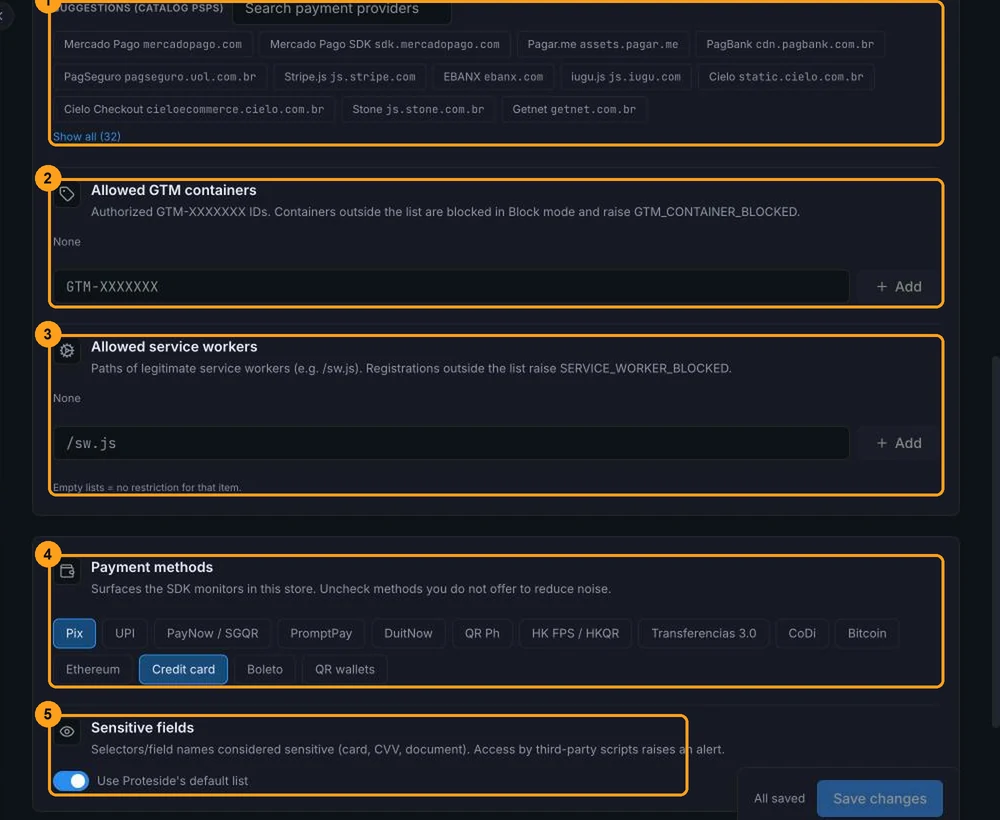
Expected iframe origins
Hosts of legitimate payment iframes, such as your payment provider's and the 3DS authentication's. When the list is filled in, the SDK alerts on iframes from providers that aren't on it inside the checkout.
- Type the host (for example
checkout.psp.com) and click Add or press Enter. If you paste a full URL, only the host is kept. Use*.to include subdomains. - In Suggestions (catalog PSPs) (1), click a provider to add it. The suggestions prioritize providers from the store's country, set in Store. Use the search or View all to find others.
- Up to 50 hosts.
Allowed GTM containers
Authorized Google Tag Manager IDs, in the GTM-XXXXXXX format (2). When the list is filled in, containers that
aren't on it are blocked on the checkout. Up to 20 containers.
The GTM list also blocks Google Analytics 4 and Google Ads
When the list is filled in, Google Analytics 4 (G-…) and Google Ads (AW-…) tags loaded by JavaScript,
including by GTM itself, are also blocked, and there's no way to add them to the list. Before filling it in, check
with whoever handles marketing whether the store uses these tags on the checkout. Also remember to paste the snippet
again: it keeps a copy of this list.
Allowed service workers
Paths of the site's legitimate service workers, such as /sw.js (3). The path starts with / and has no spaces.
When the list is filled in, a service worker that isn't on it raises an alert and, in Block mode, is removed. Up
to 20 paths.
Payment methods
Check the methods the store offers (4): Pix, credit card, boleto, crypto and instant payment methods from other countries.
Unchecking a method doesn't turn off detection
The screen says that unchecking methods reduces noise and that, with no method checked, the check is turned off. In practice, the SDK keeps recognizing and validating all methods, and an empty list is treated as Pix and card. Use the list to reflect what the store offers, not to silence alerts.
Sensitive fields
Fields the SDK watches against reads by third-party scripts, such as card number, CVV and ID document (5).
- With Use Proteside's default list on, the SDK's default list applies.
- With it off, enter your own selectors, one per line or separated by commas (up to 100). Your list replaces the default one; also include the card fields you want to keep watched.
Advanced
Fine-tuning settings that usually don't need to change:
- Calibration (seconds): the time after page load during which the SDK learns the page's scripts. From 10 to 120, default 30.
- Overlay check (ms): the interval between checks for elements overlaid on the checkout. From 500 up, default 2000.
- Installation order: what to do when the snippet isn't the first script in the
<head>. Warn (alert) (default) raises an alert; Silent doesn't.