 Proteside
 Account and access
Sign in to the dashboard, recover your password, accept invitations, switch stores, language and theme, and understand subscription lockout.
This page covers what you need to sign in to the dashboard and move between stores. To change your name and photo, see My Profile. To invite people, see Team.
Sign in
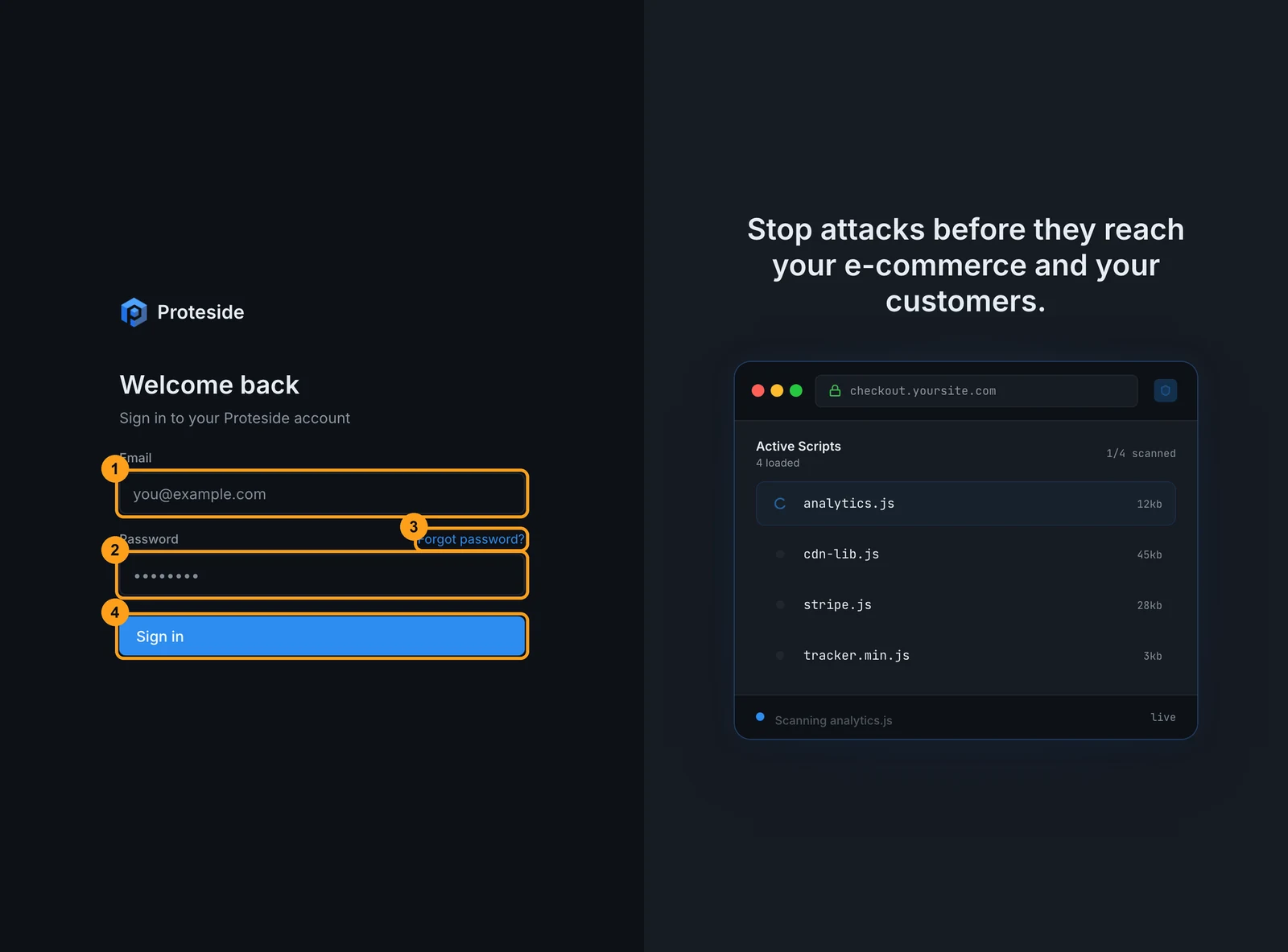
Enter your Email (1) and Password (2). If you don't remember your password, use Forgot password? (3). Click Sign in (4). You land on the Dashboard of the last store you used in this browser.
Proteside only accepts email and password. There's no Google sign-in or SSO. The sign-in screen also has no link to create an account: sign-up starts on the website, when you choose a plan, or from an invitation.
| Message | What to do |
|---|---|
| Incorrect email or password. | Check your details or use Forgot password?. |
| Please confirm your email before signing in. | Open the sign-up confirmation email and click the link. |
| Too many attempts. Please wait a moment and try again. | Wait a few minutes before trying again. |
Forgot your password
Request the link
On the sign-in screen, click Forgot password?. Enter your account's Email (1) and click Send reset link (2).
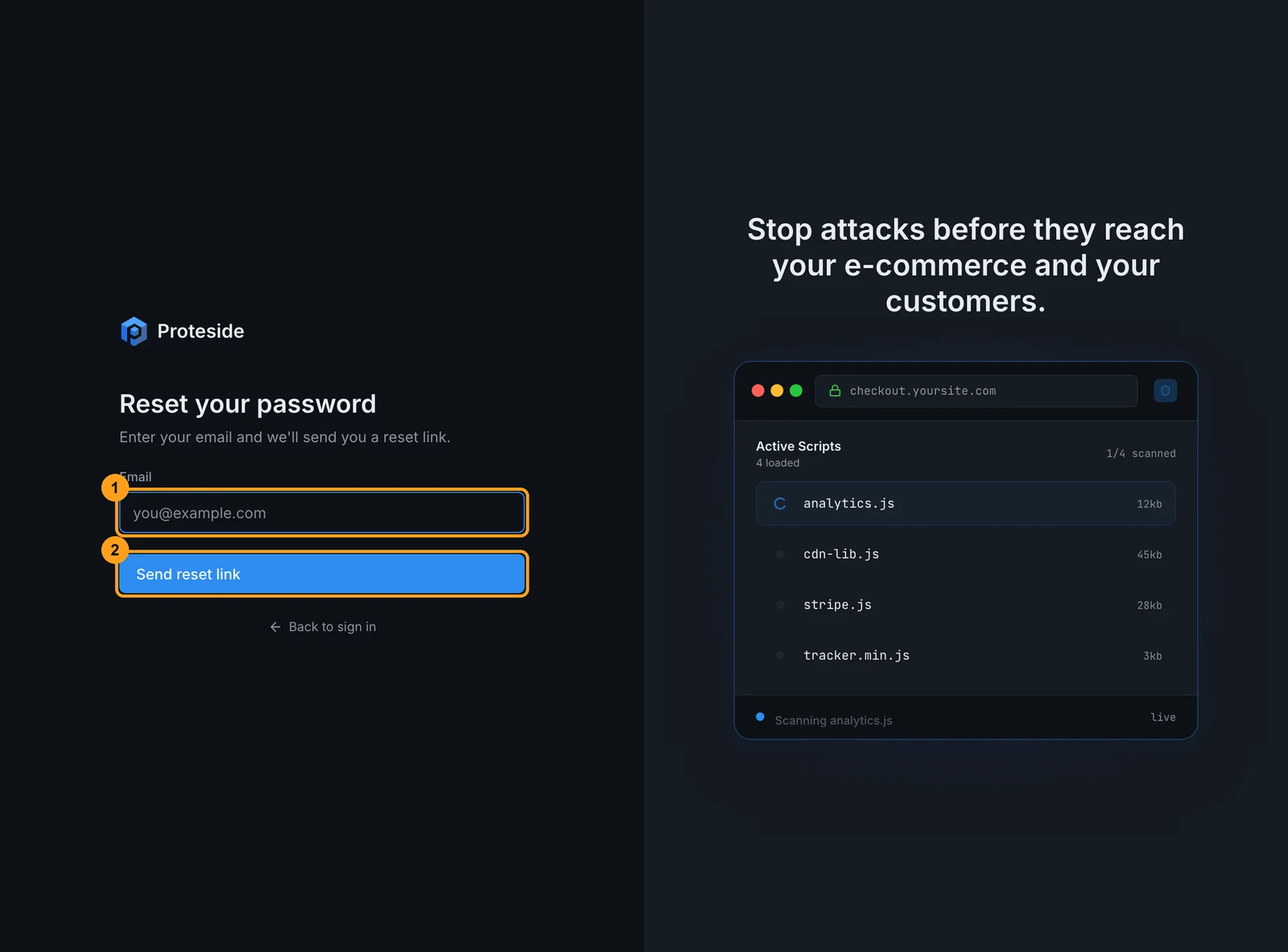
The confirmation "Check your inbox — we sent a reset link to…" appears even if the email has no account. This is a security measure: the screen doesn't reveal which emails are registered.
Open the email
Open the Redefinir sua senha ("Reset your password") email and click Redefinir senha ("Reset password"). The email always arrives in Portuguese. Open the link in the same browser where you requested the reset.
Set the new password
On the Choose a new password screen, fill in New password and Confirm password (at least 8 characters) and click Update password. After "Password updated. Redirecting…", you land on the Dashboard, already signed in.
An expired link shows a generic error
If the link has expired or was already used, the screen loads normally, but when you save it shows "Unexpected error — please try again.". In that case, request a new link from Forgot password?.
Accept an invitation
Whoever manages the store sends the invitation from Team. You receive an email with the subject "… invited you to … on Proteside".
Open the invitation
In the email, click Accept invitation. The link is valid for 48 hours. If the admin resends the invitation, only the most recent link works.
Check the details
The You've been invited screen shows the Store, the Domain, Your email and the Role you'll have: Owner, Admin, Member or Viewer. Click Accept invitation.
Sign in or create your account
- Already signed in with the invited email: access is granted right away. You see "You're in!" and go to the Dashboard.
- You have an account but aren't signed in: the sign-in screen opens with the notice "Sign in to accept your team invitation.". Sign in with the invited email.
- You don't have an account yet: the sign-up screen opens with the invitation notice. Create your account with the same email as the invitation. You don't need to choose a plan or create a store.
Select the store
After you accept, the dashboard may open in a different store. Use the store selector to choose the store from the invitation.
The invitation only applies with the same email and in the same browser
If you sign in or sign up with a different email, or switch tabs or devices partway through, the invitation isn't applied and no error appears. You get in without the store, or you land on the No active store access screen. Open the link in the email again, already signed in with the invited email.
If the invitation can't be used, the screen shows Invite unavailable with the message in English:
| Message | Meaning |
|---|---|
This invite has expired | The 48 hours have passed. Ask for a new invitation. |
This invite has been revoked | The invitation was resent or canceled. Use the most recent email. |
This invite has already been accepted | The invitation has already been used. Sign in as usual. |
This invite was sent to a different email address | You're signed in with a different email. Click Go to login and sign in with the invited email. |
What each role can do is described in Team. In short, Owner and Admin can change data; Member and Viewer can only view.
Switch stores
Everything the dashboard shows belongs to the store selected at the top of the screen.
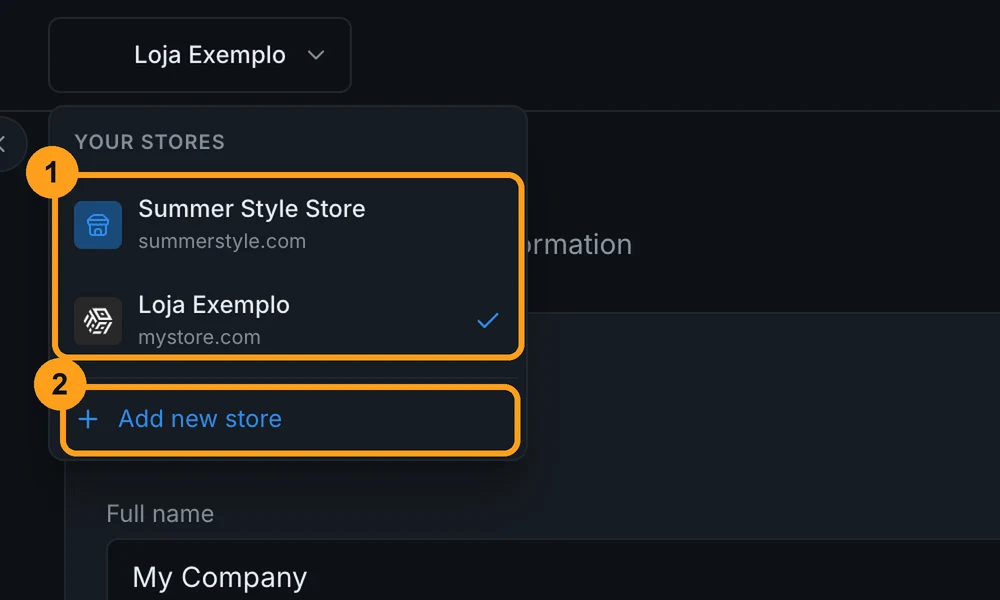
Click the store name at the top and choose another one under Your stores (1). The page reloads with the data for the chosen store. On mobile, the selector sits at the top of the sidebar.
Add a store
Only the Owner sees Add new store (2). It opens the same wizard as the first store, starting at the Your store step. See the fields in Getting started.
The number of stores depends on your plan: 1 on Essential, 2 on Standard, 5 on Growth, 20 on Pro and unlimited on
Enterprise. Above the limit, the wizard shows Store limit reached and you need to change plans in
Billing and plans.
The new store wizard has no cancel button
- To give up, go back to the dashboard with your browser's back button. The wizard's Log out button ends your session, and Back takes you to the welcome screen.
- After you create the store, Go to dashboard still shows the previous store. Select the new one in the store selector.
- Don't go back from the Install the SDK step to resubmit the form: the store has already been created, and
resubmitting fails with
Domain "…" is already protected by another account..
Language and theme
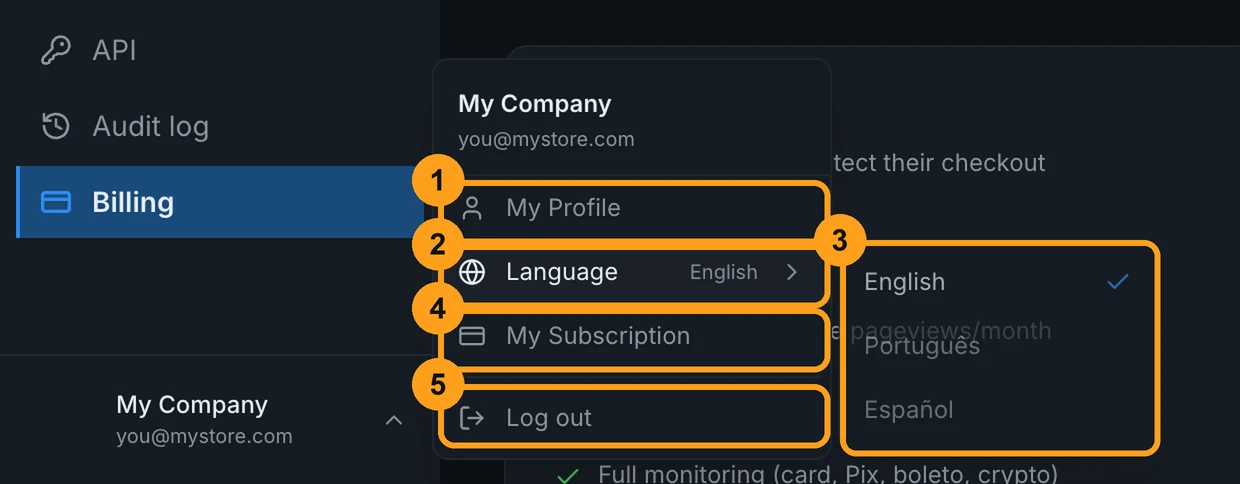
Click your name at the bottom of the sidebar to open the user menu:
- My Profile (1) opens My Profile.
- Language (2) shows the current language. Choose English, Português or Español (3). The change takes effect immediately and is saved in this browser. If you haven't chosen one, the dashboard opens in Portuguese, whatever your browser's language.
- My Subscription (4) opens the Stripe billing portal, where you change your card, download invoices or cancel. If the organization doesn't have billing set up yet, you go to Billing and plans.
- Log out (5) ends your session and takes you back to sign-in.
You switch between the light and dark theme with the sun or moon button in the top-right corner. The default is the dark theme, regardless of your system preference, and your choice is saved in this browser.
The round button on the edge of the sidebar collapses the menu down to just the icons.
No active store access
You see the No active store access screen when you're signed in but aren't part of any store. The most common reasons:
- an admin removed your access;
- the invitation wasn't applied (see Accept an invitation);
- sign-up asked for email confirmation and the organization wasn't created.
The screen offers Create my own store, which takes you to plan selection, Contact support and Sign out.
An expired subscription doesn't lead to this screen
The screen's text says "the subscription has expired" may be the cause, but an expired subscription locks the dashboard in a different way (see below). If you've only lost access, ask the store admin for a new invitation before creating your own store.
When the subscription expires
During the trial and while the subscription is current, everything works normally. At the end of the trial, Stripe charges the card on file. If the charge fails or the subscription is canceled, the dashboard goes through two phases:
| Phase | What you see | Is the checkout still protected? |
|---|---|---|
| Grace period (7 days) | The content is blurred with the Subscription expiring notice and the days remaining. | Yes, until the grace period ends. |
| Suspended | The content is blurred with the Subscription required notice. | No. The SDK stops protecting the store. |
In both phases:
- the organization owner sees Reactivate subscription, which opens the Stripe portal, or Set up billing. The Go to billing settings link takes you to Settings → Billing;
- everyone else sees "Action required — Contact the store owner to reactivate the subscription.";
- Billing and My Profile remain accessible, and the store selector keeps working.
Only the person who created the organization can subscribe, change plans or reactivate. See Billing and plans.