 Proteside
 Billing and plans
See your plan and this month's usage, change plans, manage your subscription in Stripe and understand what happens when it lapses.
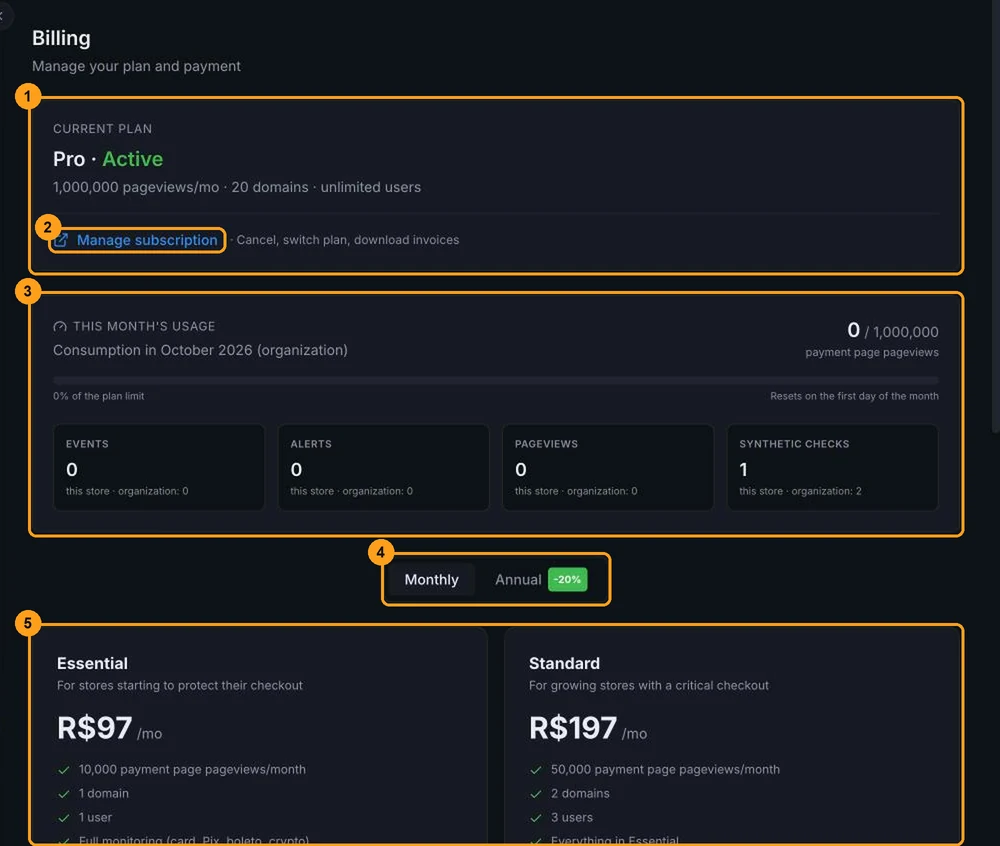
Settings → Billing shows the organization's plan, this month's usage and the available plans. The subscription belongs to the organization: a single plan covers all of its stores.
This screen stays accessible even when the subscription has lapsed, so you can bring it up to date.
Who can manage the subscription
Only the person who created the organization can subscribe, change plans and open the billing portal. The buttons appear for all roles but, for everyone else, the change fails with the message "Organization not found. Please contact support." In that case, ask the person who created the account to make the change.
Current plan
The Current plan card (1) shows the subscription status:
| Status | What it means |
|---|---|
| Active | The subscription is up to date. Shows the plan limits and the date and amount of the next charge. |
| Free trial | Trial period. Shows when the trial ends. |
| Payment pending | The last charge failed. Update your card in the billing portal. |
| Subscription canceled | The subscription has ended. Choose a plan below to reactivate. |
| No active plan | No subscription. Choose a plan to get started. |
Manage subscription
Click Manage subscription (2) to open the Stripe billing portal in a new tab. There you can:
- cancel the subscription;
- change plans;
- update your card;
- download invoices.
The link only appears when the subscription is Active or has a Payment pending. During the trial, open the portal from the user menu, at the bottom of the sidebar, under My Subscription. See Account and access.
This month's usage
The This month's usage card (3) shows how many payment page pageviews the organization had this month, across all stores, compared with the plan limit. The bar turns orange at 80% and red when it reaches 100%. The count resets on the first day of each month.
Below the bar, four numbers show the usage of the selected store and of the organization: Events, Alerts, Pageviews and Synthetic checks.
As long as no payment page has been registered through the API, every pageview with the SDK counts toward usage. See Pages & Domains.
Going over the limit doesn't turn off protection
When you reach 100%, the dashboard suggests an upgrade "to keep every payment page covered". Today, the SDK keeps protecting every page even above the limit. If usage often goes over the limit, consider a larger plan or talk to the team.
Plans
Use the Monthly / Annual toggle (4) to see the prices. With annual billing, the discount is about 20% and the year's amount is charged at once. Prices are always in Brazilian reais (R$), in any dashboard language.
The available plans (5):
| Essential | Standard | Growth | Pro | |
|---|---|---|---|---|
| Monthly | R$ 97/month | R$ 197/month | R$ 497/month | R$ 997/month |
| Annual | R$ 931/year (R$ 78/month) | R$ 1,891/year (R$ 158/month) | R$ 4,771/year (R$ 398/month) | R$ 9,571/year (R$ 798/month) |
| Payment page pageviews/month | 10,000 | 50,000 | 250,000 | 1,000,000 |
| Domains (stores) | 1 | 2 | 5 | 20 |
| Users per store | 1 | 3 | 10 | unlimited |
| History | 30 days | 90 days | 180 days | 365 days |
What each plan includes, according to the plans page:
- Essential: full monitoring (card, Pix, boleto, crypto), script inventory and authorization, email alerts and email support.
- Standard: everything in Essential, plus a weekly and on-demand PCI DSS report (6.4.3 / 11.6.1), webhooks, Slack and Microsoft Teams, and priority support.
- Growth: everything in Standard, plus the public API (tokens and scopes) and automatic approval policies.
- Pro: everything in Growth, plus a weekly synthetic checker and dedicated support with onboarding.
- Enterprise (on request): over 1 million pageviews, unlimited domains and users. Click Talk to the team and fill in the form.
On Essential, the PCI DSS Evidence screen is locked with an invitation to upgrade. The number of stores and users is also limited by the plan: see Team.
Enterprise form confirmation
The Enterprise window shows "Mensagem enviada" ("Message sent") even when sending fails. If you don't hear back within a few business days, send the form again.
Subscribe or change plans
Click Upgrade or Downgrade on the card of the plan you want.
- No subscription (or a canceled one): you go to Stripe checkout to enter your card.
- Active subscription, in trial or with a payment pending: the change is made on the same subscription, immediately, with charges prorated for the time left in the period. The page reloads with the new plan.
Payment is by card only. The checkout accepts promo codes.
14-day trial
The organization's first subscription starts with 14 days free, with the card entered at checkout. During the trial, the chosen plan's limits apply. At the end, the subscription starts being charged to the card, unless you cancel before then in the billing portal.
The trial applies only once per organization: plan changes and reactivations don't get a new trial.
When the subscription lapses
When a payment fails or the subscription ends, a 7-day grace period starts:
| Phase | Dashboard | Checkout protection |
|---|---|---|
| Grace period (7 days) | The content is dimmed with the Subscription expiring notice and the days left. | Keeps working. |
| After the grace period | Every screen is locked with the Subscription required notice, except Billing and My Profile. | Stops. The SDK no longer protects the stores. |
In the notice, the person who created the organization sees the Reactivate subscription button, which opens the billing portal, or Set up billing if the organization doesn't have a billing account yet. Everyone else sees "Contact the store owner to reactivate the subscription." The store switcher keeps working during the lock.
Without a subscription, the checkout is unprotected
After the grace period, the snippet stays on the store, but the SDK doesn't protect or send data. To avoid an interruption, keep your card up to date in the portal and watch for the Payment pending status in Billing.