 Proteside
 Store
Edit the name, country, timezone, emergency contact and icon of the selected store.
Settings → Store holds the profile of the store selected in the store switcher. The SDK key and the install snippet are not here: they're in Pages & Domains.
Who can edit
Only the store's owners and admins can change the profile. For the Member and Viewer roles, the fields appear disabled and there's no Save changes button, with no message explaining why. See Team to check your role.
Edit the profile
Adjust the fields
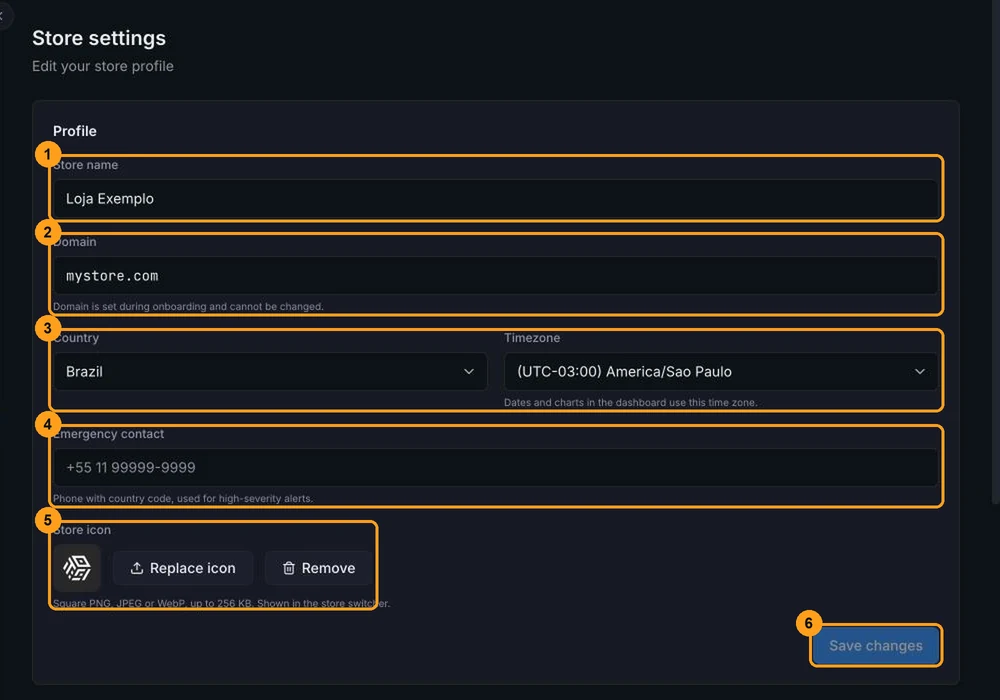
- Store name (1): how the store appears in the store switcher, in emails and in reports. Up to 120 characters.
- Domain (2): read-only. See The domain doesn't change.
- Country and Timezone (3): see Country and timezone.
- Emergency contact (4): phone number with country code, for example
+55 11 99999-9999. Up to 32 characters. - Store icon (5): saved immediately, separately from the form. See Store icon.
Save
Click Save changes (6). The button is only enabled when something has changed. After saving, the dashboard reloads to apply the new name and timezone on every screen.
The emergency contact isn't used yet
The field hint says the phone number is used for high-severity alerts, but today no alert is sent to this number. To be notified of serious alerts, set up a channel in Notifications.
Country and timezone
- The Timezone defines how all dates and charts in the dashboard are shown to all of the store's users.
With no timezone set, the dashboard uses
America/Sao_Paulo. - The Country prioritizes the payment provider suggestions in Payment protection.
Store icon
The icon appears in the store switcher, next to the name. In the Store icon area:
- click Upload icon (or Replace icon, if there's already one) and choose a square PNG, JPEG or WebP image of up to 256 KB;
- click Remove to go back to the default icon. There's no confirmation.
The icon is saved immediately, without needing Save changes. If the screen warns that the current icon is an external URL the dashboard no longer loads, upload the image again to keep it.
The domain doesn't change
The domain is set when the store is created and can't be changed later. To protect another domain, create a new store with Add new store, in the store switcher. Only the owner sees this option, and the number of stores depends on the plan (see Billing and plans).
Other items on the page
- Installation and protection: shows the store's SDK channel (
stableorlatest) and shortcuts to Install snippet and Payment protection. - Proteside seal: an optional HTML snippet that links to the store's public verification page. See Proteside badge.