 Proteside
 Audit log
See who changed what in the store's configuration, compare before and after, and export the log as CSV.
Settings → Audit log shows the selected store's Audit log: every configuration change, with date, author and the state before and after. The log is append-only: nobody, not even the owner, can edit or delete a row. It serves as change-control evidence for PCI DSS 4.0.
All of the store's roles can see the screen and export the CSV.
What gets recorded
| Area | Examples |
|---|---|
| Store | name, country, timezone, emergency contact, SDK key rotation |
| Payment protection | protection mode, developer mode, channel, allowed lists |
| Trusted recipients | addition, activation and removal |
| Scripts and reviews | authorization, blocking and script status changes |
| Rules and policies | creation, changes and deletion |
| Alerts | resolve, reopen and snooze |
| Security headers | value authorization |
| Notification channels | creation, changes and deletion of the store's channels |
| Team | invitations, members added or removed, role changes |
Each row is an Insert, Update or Delete. Some team actions appear on two rows.
Organization changes don't appear here
The screen only shows records tied to the selected store. Creating and revoking API tokens, and changes to notification channels with Organization scope, don't appear, even though API tokens is in the Table filter list.
Export CSV
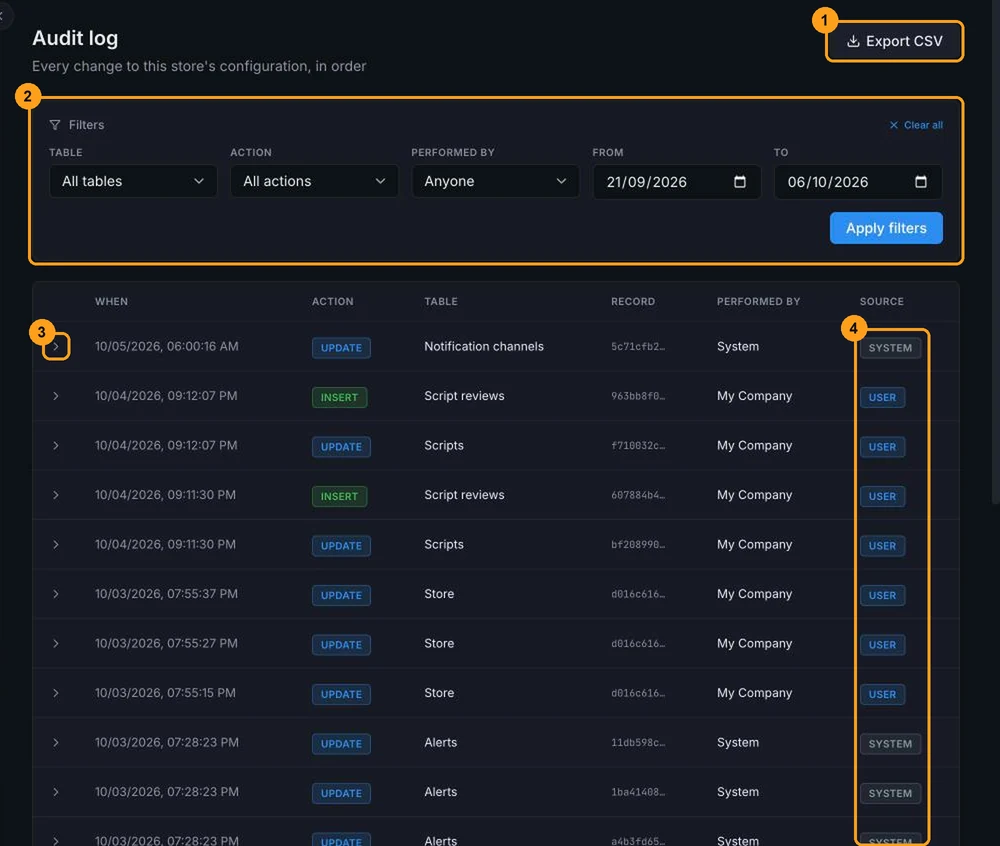
Click Export CSV (1) to download what's filtered on the screen, up to 5,000 rows. The file includes date and time, action, table, record, email of who made the change, source, and the state before and after each change.
Treat the CSV as confidential
The before and after state is recorded in full. It can contain team emails, webhook addresses and even the signing secret of notification channels. Store the CSV somewhere restricted, share it only with people who need it (for example, the auditor) and delete unnecessary copies. If a webhook secret has been passed around, change it in Notifications.
Filter
In the Filters card (2):
- Table: the area that changed, such as Store, Rules or Team members.
- Action: Insert, Update or Delete.
- Performed by: a current member of the store. Actions by former members, the system or API tokens can't be filtered by author.
- From and To: the period.
Click Apply filters. The filters are kept in the page URL, so you can save or share the link. Clear all removes the filters.
The screen opens on the last 15 days
With no period chosen, the screen shows only the last 15 days, and so does the exported CSV. If the list comes back empty with "No log entries match the current filters.", widen the period in From. Filter dates are counted in UTC, not in the store's timezone.
See before and after
Click any row (3) to expand it. The Before and After panels show the full record at both points in time. An insertion has no Before, and a deletion has no After.
The table shows 20 rows per page, from newest to oldest. Use Previous and Next to navigate.
Source
The Source column (4) says where the change came from:
| Source | Meaning |
|---|---|
| User | Someone on the team, through the dashboard. The Performed by column shows the name or email. |
| API token followed by the prefix | An integration using an API token. The prefix identifies the token. |
| System | Proteside itself, in internal processes. |
| SDK | Processing of the data sent by the SDK on the checkout. |
| Scheduled job | Automatic routines, such as periodic checks. |
| Stripe webhook | Subscription changes coming from billing. |
Retention
Today, no automatic routine deletes the audit log, regardless of the plan's history period.