 Proteside
 PCI DSS Evidence
Track requirements 6.4.3 and 11.6.1, authorize security headers, generate reports and hand the evidence to your QSA.
The PCI DSS Evidence screen, in the Compliance group of the menu, brings together what Proteside records about your payment pages for PCI DSS 4.0 requirements 6.4.3 and 11.6.1. It shows the status of each requirement, the security headers, the reports to download and the periodic checks.
Available from the Standard plan
On the Essential plan and on a trial without a plan, the screen is locked and shows the View plans button. See Billing and plans.
Proteside generates supporting evidence. The screen itself states that it's "not a compliance certification": compliance is assessed by your QSA, or by your team, in the self-assessment questionnaire.
What the requirements ask for
| Requirement | In plain language | How Proteside generates the evidence |
|---|---|---|
| PCI DSS 4.0, requirement 6.4.3 | Every script that runs on the payment page must be inventoried, have a justification for why it's there and be authorized. You also need to make sure the script hasn't been changed. | The SDK builds the script inventory on its own. Each authorization in Scripts records who decided, when and why. The content hash is pinned at authorization, and any change sends the script back to review. |
| PCI DSS 4.0, requirement 11.6.1 | You need a mechanism that detects unauthorized changes to the HTTP headers and the content of the payment page, evaluated at least every 7 days. | The SDK observes every visit to the checkout. A server-side verifier checks the content of the scripts every 6 hours, and a synthetic verifier opens the monitored pages every week. Changes generate alerts. |
Summary
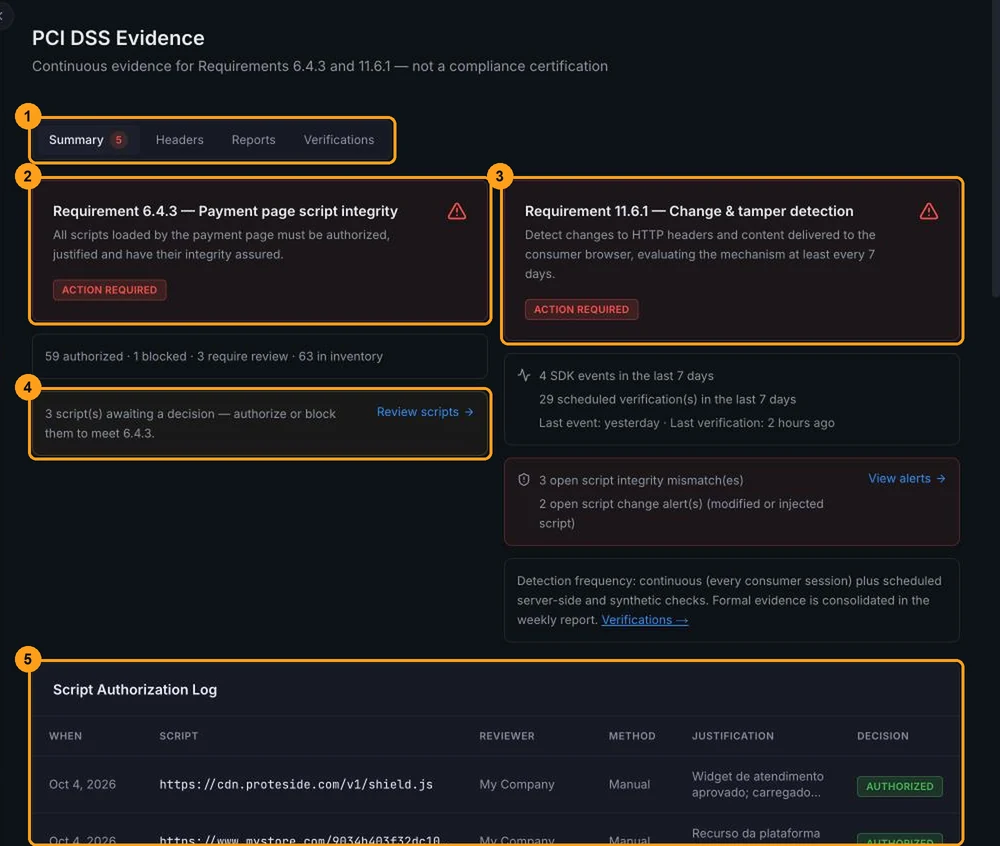
The Summary, Headers, Reports and Verifications tabs (1) organize the screen. The red number on the Summary tab counts open tampering alerts: integrity mismatch, modified or injected script and changed header.
The Requirement 6.4.3 — Payment page script integrity card (2) and the Requirement 11.6.1 — Change & tamper detection card (3) show one of these statuses:
| Status | 6.4.3 | 11.6.1 |
|---|---|---|
| Evidence complete | Every script has a decision and no authorization has expired. | There was SDK activity or a verification in the last 7 days and there's no open tampering alert. |
| Attention | The inventory is still empty. | Not used. |
| Action required | There's a Needs review script, an expired authorization or a blocked script that still loads. | There were no SDK events or verifications in the last 7 days, or there's an open tampering alert. |
Below each card you see the numbers and the shortcuts to fix them:
- Scripts awaiting a decision (4): click Review scripts and authorize or block each one.
- Expired authorizations: re-authorize the scripts in Scripts.
- Blocked scripts that still load: blocking only works for scripts inserted by JavaScript. Remove the tag from the page HTML.
- No SDK events or verifications: click Check installation and check the snippet.
- Open tampering alerts: click View alerts and handle each one in Alerts.
Scripts past their scheduled review date only generate a notice and don't change the 6.4.3 status.
The Script Authorization Log (5) is the history of decisions: When, Script, Reviewer, Method, Justification and Decision. The reviewer appears by name, never by email. Automatic decisions appear as System, Policy: … or API token …. Click Show more to see older decisions.
Headers
Requirement 11.6.1 also asks you to detect changes to the HTTP security headers. The Headers tab (1) lists the 12
headers the SDK observes on the payment pages, such as Content-Security-Policy, Strict-Transport-Security and
X-Frame-Options, plus any other header it finds.
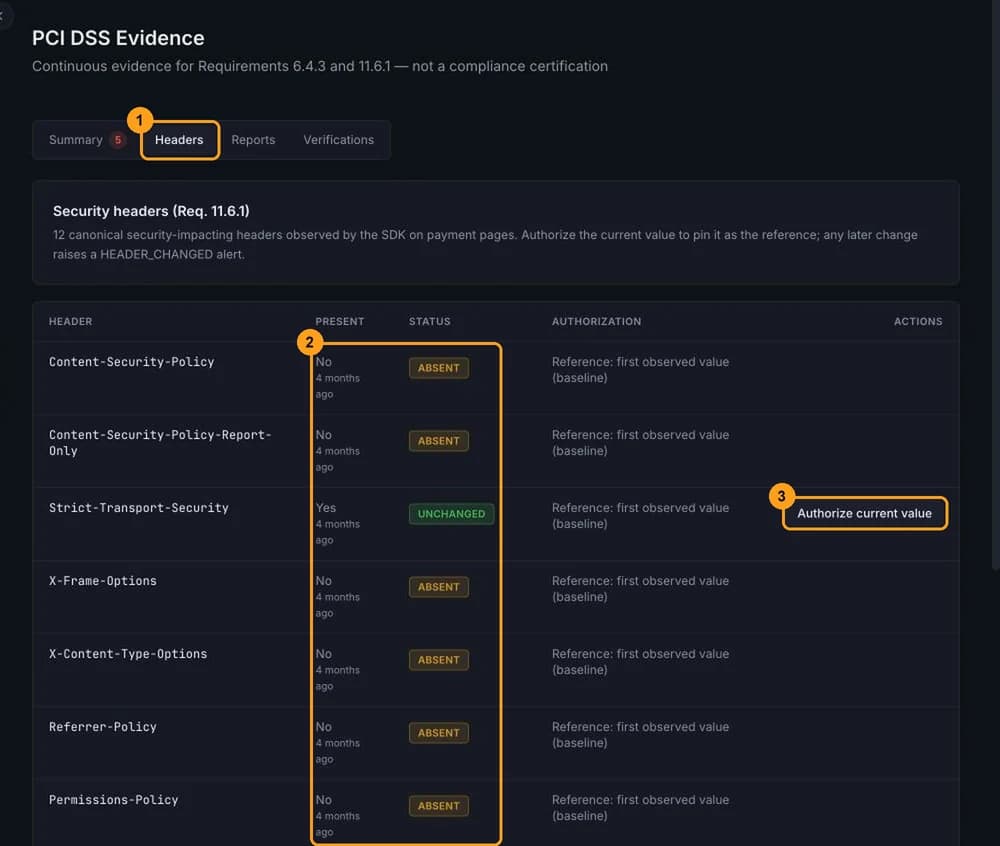
The Present and Status columns (2) show whether the header was seen and how it compares to the reference:
| Status | Meaning |
|---|---|
| Unchanged | The value matches the reference. |
| Changed | The value changed. A Security header changed (HEADER_CHANGED) alert was opened. |
| Absent | The page doesn't send this header. |
| Not collectable | The browser doesn't allow reading this header. Set-Cookie always shows up like this, and that's expected. |
| Awaiting observation | The SDK hasn't visited the page with this header yet. |
Until you authorize anything, the reference is the first observed value (the baseline). To pin today's value as the reference:
Click Authorize current value
On the header's row, click Authorize current value (3).
Write the justification
Explain where the value comes from, with at least 10 characters. Example: "new CSP published on Sep 12 by the platform team (ticket #123)".
Confirm
Click Confirm. The table now shows who authorized it and when. From then on, any change to the value generates the
HEADER_CHANGED alert.
When you change a header on purpose, the status becomes Changed and the button turns into Accept new value. Use it, with a justification, to record the change as authorized. Remove authorization sets the comparison back to the baseline.
Only Owner and Admin can authorize headers. Everyone else sees the table without the Actions column.
Reports
Each report is an immutable snapshot of the evidence for a period, in PDF, JSON and CSV.
Generate a report now
Choose language and period
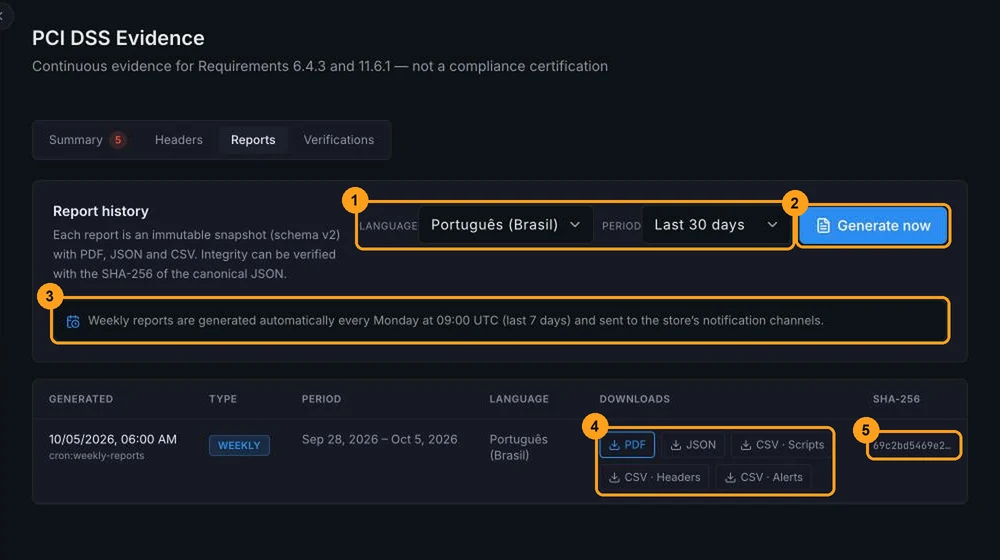
In Language and Period (1), choose Português (Brasil) or English and the last 7, 30 or 90 days.
Generate it
Click Generate now (2). Within a few seconds, "Report generated successfully." appears and the report goes to the top of the history as On demand.
Only Owner and Admin can generate reports, up to 5 per hour per store. Everyone else can download the ones that already exist.
Automatic weekly report
The notice (3) explains: every Monday at 09:00 UTC (06:00 in Brasília), Proteside generates the report for the last 7 days and sends it to the store's notification channels. The email includes a link to the PDF, valid for 7 days, and a link to the report in the dashboard. The E-mail (padrão) ("Email (default)") channel, created with the store, already receives it. On a channel with filtered events, select the Report ready event.
What the weekly notice doesn't say
- Stores without any SDK event in the last 30 days don't receive the weekly report.
- There's no screen to change the frequency or the language, or to turn the delivery off. That's only done through the API, which also allows a monthly report instead of the weekly one. See the API recipes. When the schedule is changed through the API, the notice still talks about a weekly report.
- There's no dedicated recipient list: the report goes to the active notification channels.
- Reports are only produced in Portuguese or English, even with the dashboard in Spanish.
- The history on the screen shows the 30 most recent reports. Older ones are still available through the API.
Download and verify
In the Downloads column (4) of each report:
| File | Content |
|---|---|
| The report for reading: scope and limitations, requirement 6.4.3, requirement 11.6.1, periodic assessment, headers, authorization policies in effect, script inventory, alert log and legal notice. If PDF unavailable appears, use the JSON or generate the report again. | |
| JSON | The same data in a structured format, with the report's identifier and SHA-256. |
| CSV · Scripts, CSV · Headers, CSV · Alerts | The tables for spreadsheets, with headers in English. |
The SHA-256 (5) is the report's fingerprint: hover over it to see the full value. It's calculated over the report
data (the data field of the JSON, with keys in alphabetical order and no whitespace), not over the PDF file. If anyone
changes the data, the recalculated hash no longer matches. The PDF shows the Report ID in the footer, which links
the document to the row in the history.
Verifications
The Verifications tab (1) shows the periodic runs that complement the SDK's continuous monitoring. They are independent evidence for 11.6.1, because they don't depend on customers visiting the checkout.
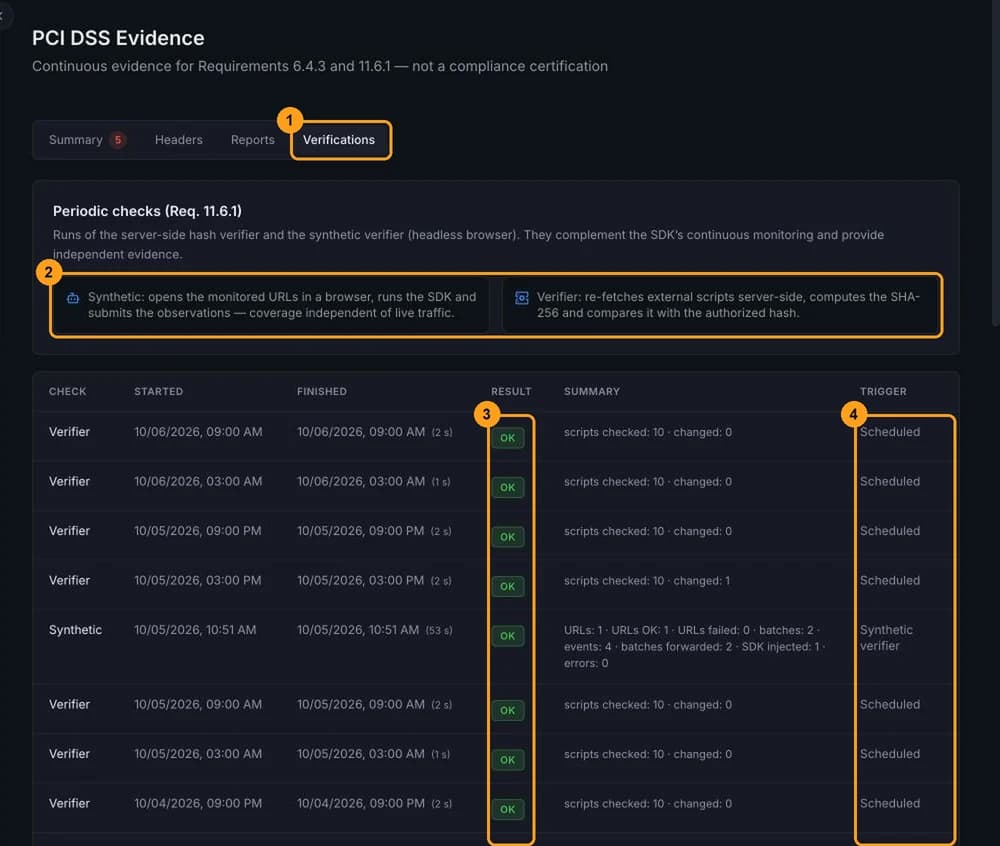
The two verifiers (2):
- Synthetic: opens the monitored pages in an automated browser, runs the SDK and sends the observations. It runs every Monday.
- Verifier: downloads again, on the server, the external scripts that are authorized or in review, calculates the hash and compares it with the authorized hash. It runs every 6 hours. A mismatch opens an integrity alert and sends the script back to review.
The Result column (3) shows OK, Partial (some of the pages or scripts failed), Failed or Running. The Summary column shows the counts, such as scripts checked and changed. The Trigger column (4) says what started the run: Scheduled, Synthetic verifier, Manual or API.
If the table shows Failed on several runs in a row, check that the checkout pages are online and reachable.
Handing the evidence to your QSA
Get the Summary to Evidence complete
Before generating the final report, resolve what's pending: scripts without a decision, expired authorizations, open tampering alerts and unauthorized headers.
Choose the reports for the assessed period
Use the weekly reports for the period or generate a 90-day On demand report. For a different closed period, such as the assessment year, generate it through the API with fixed dates. See the API recipes.
Download the files
Download the PDF and the JSON of each report and, if the assessor asks for spreadsheets, the three CSV files. Write down the SHA-256 of each one.
Send them with context
Send the files together with a description of the scope: which domains and payment pages have the snippet installed. The PDF lists the monitored pages and the coverage limitations. If the assessor wants to check integrity, they can recalculate the SHA-256 from the JSON.
The report covers requirements 6.4.3 and 11.6.1 on the pages where the SDK is installed. It doesn't replace the external vulnerability scan performed by the ASV (requirement 11.3.2) or the other PCI DSS requirements. If the ASV or the acquirer asks for evidence about the scripts on the payment page, the same PDF works.