 Proteside
 My Profile
Change your name and photo, and check your account's email and ID.
My Profile holds your personal account details, which apply across all the stores you have access to. To open it, click your name at the bottom of the sidebar and choose My Profile. The screen isn't in the Settings group of the menu.
My Profile stays accessible even when the organization's subscription has lapsed.
Change your name
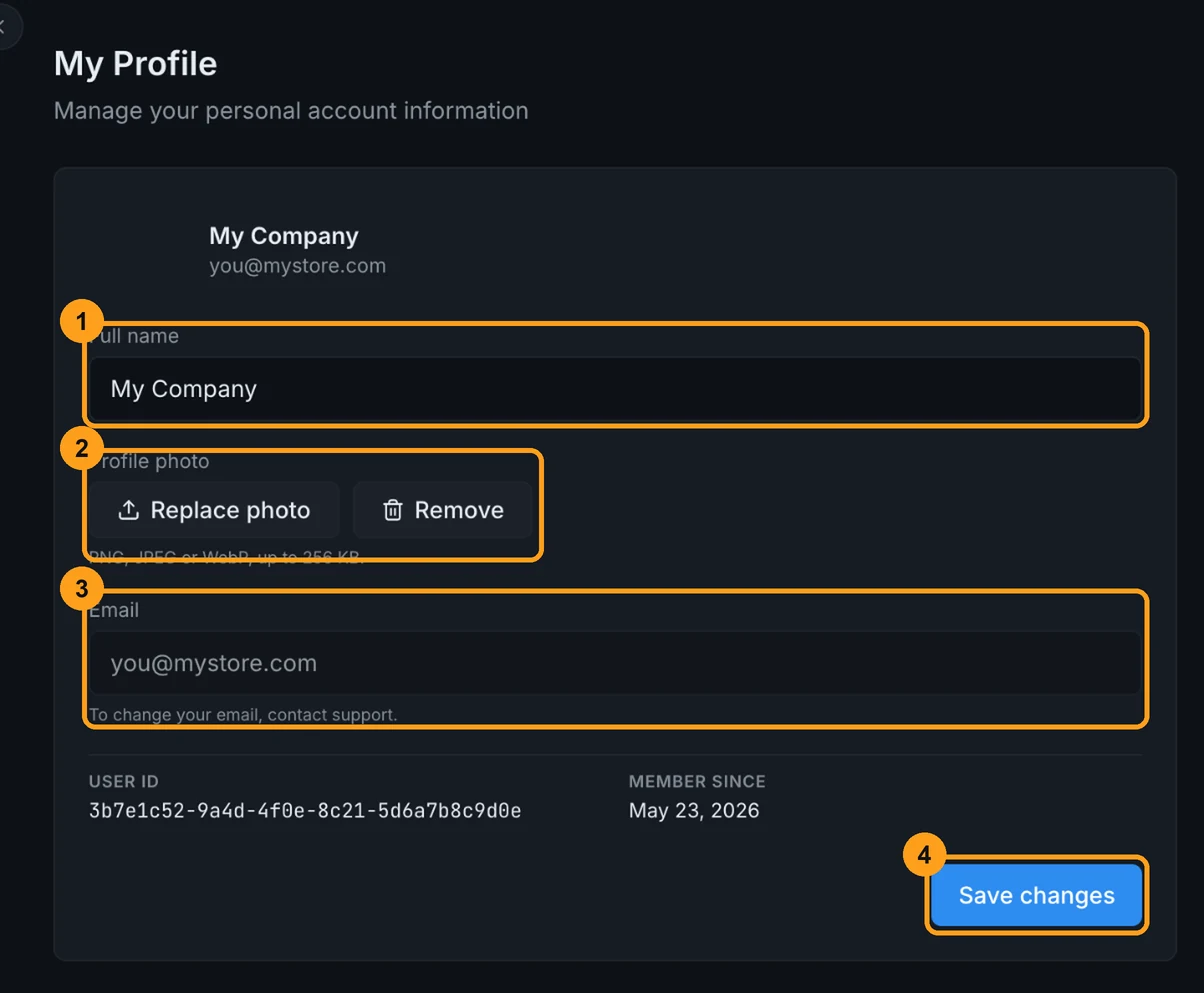
Edit Full name (1), up to 120 characters, and click Save changes. Your name appears in Team, in the Audit log and in the invitation emails you send.
Change your photo
In Profile photo (2), click Upload photo (or Replace photo, if there's already one) and choose a PNG, JPEG or WebP image of up to 256 KB. The photo is saved immediately and appears in the user menu. To go back to your initials, click Remove.
The Email (3) is read-only. To change your account's email, contact support.
Save
The Save changes button (4) is only enabled when your name changes. The photo doesn't depend on it.
Other account details
At the bottom of the card are the User ID, which support may ask for to find your account, and Member since, the date your account was created.
What isn't here
- Language and light/dark theme: they're in the user menu and at the top of the dashboard. See Account and access.
- Password: there's no way to change your password inside the dashboard. Sign out and use Forgot password? on the sign-in screen.
- Subscription: it's in Billing or under My Subscription, in the user menu.