 Proteside
 Alerts
Understand each security alert, filter what matters, and resolve or snooze alerts with a record of what was done.
The Alerts page brings together the security events from your monitored pages: new or changed scripts, data theft attempts, tampered payment codes, installation problems and header changes. Each alert you handle with a note becomes evidence that the store monitors and responds to changes (PCI DSS 4.0, requirement 11.6.1).
How an alert is created
Alerts come from two sources:
- SDK: detections made in your customers' browsers, such as script injection, keyloggers or a tampered Pix code.
- System: checks run by Proteside, such as a change in a script's integrity, a changed security header, a CSP violation and a silent SDK.
The same problem doesn't turn into dozens of alerts. While an alert is open, new occurrences of the same problem (same script, same destination, same page) add to the occurrences and sessions counters of the existing alert. After you resolve it, a new occurrence opens a new alert.
Severity is decided by Proteside, not by the SDK. A vendor listed in the catalog lowers the severity; card data, CPF or CNPJ in an outgoing request raises it. The reason for the adjustment appears on the alert card.
Alert types
The technical details of each detection are in Events and detections.
Scripts and integrity
| Type | What it means | Base severity |
|---|---|---|
| Script Injection | A new script appeared on the page after it loaded. | High (lower for first-party scripts or scripts from known vendors) |
| Script Modified | A known script came back to the page with different content. | High |
| Script Integrity Mismatch | The content of an authorized script changed. The script goes back to review in Scripts. | High |
| Script Blocked | A block rule stopped a script from loading. | High |
| GTM Container Blocked | A Google Tag Manager container outside the allowed list was stopped. | High |
| Service Worker Blocked | A service worker outside the allowed list was found. | High |
Customer data and forms
| Type | What it means | Base severity |
|---|---|---|
| Keylogger Detected | A script started listening to what's typed in a sensitive field. | Critical |
| Exfiltration Attempt | Page data (card, CPF, CNPJ, email or Pix key, for example) was sent to an untrusted domain. | Critical (lower when the destination is a payment processor or known vendor) |
| WebSocket Exfiltration | The page opened a WebSocket connection to an unknown domain. | Critical |
| Form Action Hijack | A form's destination was changed. | Critical |
| Overlay Detected | An element was positioned over a sensitive field. | High |
| Iframe Replaced | The address of a payment iframe changed. | High |
| Unexpected Iframe | A payment iframe from another provider, or one overlapping the expected one, appeared on the checkout. | High |
| Card Field Outside Vault | There's a card field on the page itself, outside the provider's iframe. | High |
Payment
| Type | What it means | Base severity |
|---|---|---|
| Pix Tampered | The Pix code shown changed, or the recipient isn't on your trusted recipients list. | Critical |
| Boleto Tampered | The digit line changed, or the bank isn't on the list. | Critical |
| Amount Tampered | The amount in the payment code differs from the amount the checkout reported to the SDK. | Critical |
| Crypto Address Swap | The wallet address shown changed or isn't on the list. | Critical |
| UPI Tampered / QR Tampered | The same, for UPI and for QR codes of other methods. | Critical |
| Clipboard Hijack | The content the customer copied was swapped. | High |
These alerts also appear in Payment integrity.
Installation, headers and CSP
| Type | What it means | Base severity |
|---|---|---|
| SDK Installation Order Issue | Some script ran before the Proteside snippet. The card includes How to fix guidance. | Medium |
| SDK Silent | A domain with traffic stopped sending data for 24 hours. See SDK Health. | Medium |
| Security Header Changed | A security header on the page changed from its authorized value. | Medium |
| CSP Violation | The browser blocked a script or a connection because of your CSP policy. | Low |
Severities
| Severity | Border color | When to use as a reference |
|---|---|---|
| Critical | red | Direct risk to payment data. Handle immediately. |
| High | orange | Relevant change on the payment page. Handle the same day. |
| Medium | yellow | Installation or configuration problem. |
| Low | gray | Informational, usually from a known vendor. |
| Info | blue | Record only, no action expected. |
Open, Snoozed and Resolved
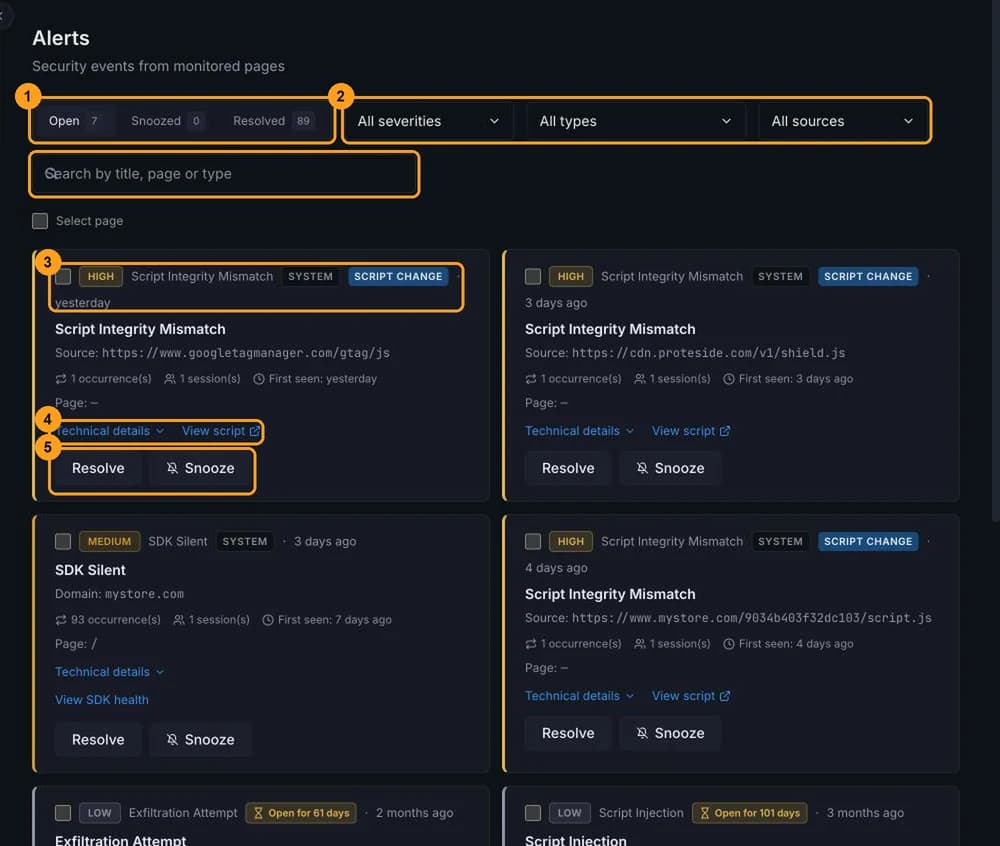
The tabs (1) split the alerts:
- Open: need attention.
- Snoozed: still open, but out of the main list until the date you chose. New occurrences keep being counted. When the date passes, the alert goes back to Open on its own.
- Resolved: handled, with the resolution note.
The tab numbers count all alerts, ignoring the filters. The red number in the sidebar counts open and snoozed alerts.
Filter and search
Use the filters (2):
- All severities: Critical, High, Medium, Low or Info.
- All types: any type from the list above.
- All sources: SDK, System, Synthetic or Verifier. The Manual and API options exist in the filter, but today no alert is created with these sources.
- Search by title, page or type: also searches the description and the data shown on the card.
The filters are stored in the page address, so you can share a link to a view. The list shows 20 alerts per page and covers the store's 1,000 most recent alerts.
Read an alert
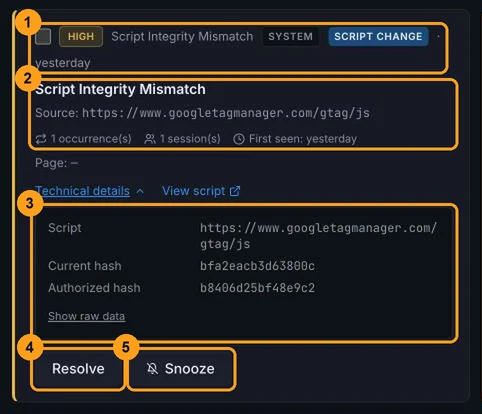
- Identification (1): severity, type and, when it doesn't come from the SDK, the source (for example SYSTEM). You may also see the Script change or Header change badge and, for alerts open for more than 7 days, the Open for N days badge.
- Summary (2): title, the source and destination of the problem, the vendor (if known), the number of occurrence(s), the number of affected customer session(s), First seen and the Page.
- Technical details (3): click to see the structured fields (script, current hash, authorized hash, destination, detected data, SDK version and others). Show raw data shows everything that was received.
When the alert is about a script in the inventory, the View script link opens the script in Scripts, where you can re-authorize or block it. Installation order alerts include View install snippet; silent SDK alerts include View SDK health. The snippet is in Pages & Domains.
In Pix tampering alerts, the summary shows the original Pix key and the replacement key as the SDK read them. Be careful when sharing screenshots of these alerts.
Resolve or snooze
| Action | When to use | What happens |
|---|---|---|
| Resolve | You investigated and handled the case (or concluded it's expected). | The alert moves to Resolved with your note, your name and the date. A new occurrence opens another alert. |
| Snooze | You know about the problem and will handle it later, or want it out of the way for a while. | The alert stays open, out of the main list, for 1, 7 or 30 days. |
Click Resolve
On the card, click Resolve (4).
Write the note
Describe how the case was handled. The note is optional, but it's what shows an auditor what was done. If the alert groups several occurrences, resolving closes all of them.
Confirm
Click Confirm. The alert moves to the Resolved tab.
To snooze, click Snooze (5) and choose 1 day(s), 7 day(s) or 30 day(s). On the Snoozed tab, Unsnooze sends the alert back to Open right away. On the Resolved tab, Reopen makes the alert open again and keeps the previous note.
Reopening can fail
If the same problem has already happened again after you resolved it, there's a new open alert for it, and
Reopen shows the duplicate_open_alert error. In that case, handle the alert that's in Open.
The note field keeps the text you typed if you cancel and open another alert. Check the note before confirming.
Bulk actions
Select the alerts
Check the box on each alert, or Select page to check all alerts on the current page. To include every alert in the current filter, not only those on the page, click Select all N.
Choose the action
Click Resolve selected (with a single note) or Snooze selected (only on the Open tab). Clear selection undoes the selection.
The selection is kept when you change pages and is cleared when you change a filter. There's no bulk action to unsnooze snoozed alerts.
Open an alert from a link
Emails and webhooks include a direct link to the alert. It opens the Alerts page on the right tab, with the alert highlighted and its details expanded.
The link doesn't switch the selected store. If the alert belongs to another store, the list opens with no highlight and no warning. Switch the store in the selector at the top and open the link again.
Get alerts as notifications
Each new alert is sent to the configured notification channels (email, webhook, Slack or Teams) that accept its severity. New occurrences of an alert that's already open don't trigger another notification. When a silent SDK alert is resolved automatically, channels subscribed to the resolution event are also notified. Set up the channels in Notifications.
Who can resolve and snooze
Only the store's owners and admins can resolve, snooze, unsnooze and reopen alerts. Members and viewers can see the alerts and their details, but the buttons and checkboxes don't appear for them.