 Proteside
 Rules
Block or allow scripts by domain or URL on every page where the SDK is installed.
The Rules page lists the store's Block and Allow rules. They're sent to the SDK and applied in your customers' browsers, on every page where the snippet is installed. Rules created here appear alongside the ones created automatically when you block a script in Scripts or when a policy blocks a script.
How a rule works
- Block: the SDK prevents a script inserted by JavaScript from entering the page and opens a Script Blocked alert. If one slips through, the SDK removes it.
- Allow: overrides the block rules that match the same script. If an allow rule and a block rule both match, allow wins.
Rules apply to the whole store, on every page. Proteside's own addresses are never blocked.
Block rules also apply in Monitor mode
The Payment protection screen describes Monitor mode as "without interfering with the page", but active block rules are applied in both modes. If you don't want to block anything yet, deactivate the rules.
Scripts written directly in the page HTML run before the SDK loads and can't be stopped. For these, the rule only creates a record. Remove the tag from the HTML or the store theme.
Targets
| Target | Matches | Example value |
|---|---|---|
| Domain | The script's domain and all its subdomains. | exemplo-tracker.com also blocks cdn.exemplo-tracker.com. |
| Script URL | The script's full address, exactly, with or without the part after the ?. | https://cdn.exemplo-tracker.com/v2/tag.js |
| Content hash | Nothing, for now (see the warning). | — |
There are no wildcards, regular expressions or per-page rules.
Content hash rules have no effect
The Content hash target is offered in the form and the rule shows as Active, but the SDK doesn't apply rules of this type yet. To block a script, use Domain or Script URL. For an inline script, remove it from the HTML, the theme or the tag manager.
Write the domain without the protocol and in lowercase
The value isn't validated. https://exemplo-tracker.com, exemplo-tracker.com/caminho, *.exemplo-tracker.com or
uppercase letters create a rule that never matches. Use only the domain name, in lowercase.
Add a rule
Open the form
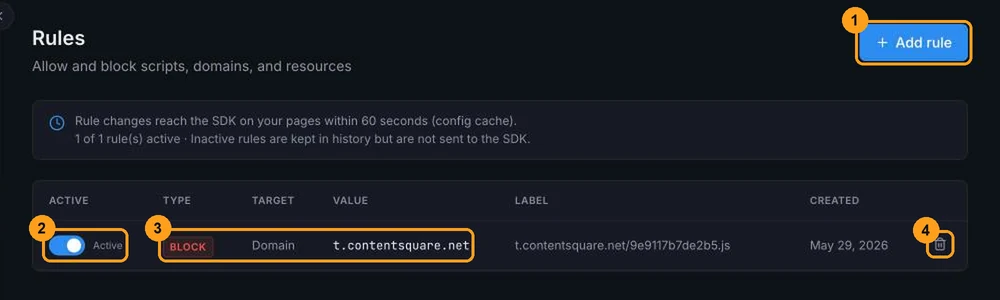
Click Add rule (1 in the list screenshot).
Fill in the rule
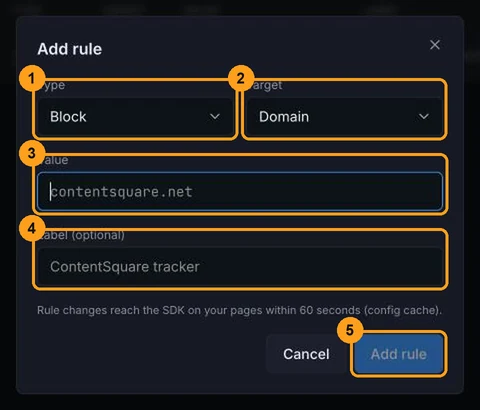
Choose the Type (1), Block or Allow, and the Target (2), Domain or Script URL. Fill in the Value (3) and, if you like, a Label (4) to remind you what it's for, such as the vendor's name.
Save
Click Add rule (5). The rule is created already active.
If a rule with the same type, target and value already exists, the screen says "Rule created", but nothing changes. If the existing rule is inactive, it stays inactive: activate it with the toggle in the list.
How long it takes
Changes reach the SDK on your pages within about 60 seconds. Because of configuration caching, some pages may take a few minutes to get the change. To test, open the checkout in a new private window.
Activate and deactivate
Use each rule's Active toggle (2). Inactive rules stay in the list as history, but aren't sent to the SDK. The panel at the top shows how many rules are active, for example "3 of 5 rule(s) active".
Deactivating is the safe way to suspend a rule without losing the record.
Edit the label
Hover over the Label column and click the Edit label pencil. Type the new text (up to 120 characters) and press Enter or click Save label. Type, target and value can't be edited: to change them, create another rule and deactivate or delete the old one.
Delete a rule
Click the rule's trash icon (4) and confirm. Deletion is permanent; the record remains only in the audit log. If you might need the rule again, deactivate it instead.
Rules created from other screens
| Source | What's created |
|---|---|
| Block a script in Scripts | A Block rule with the script's name as its label. For an external script, the target is the entire domain; for an inline script, the target is the hash (no effect). |
| Approval policy with the Block action | A Block rule labeled Policy: <policy name>, with the same targets as above. |
| Authorize a script in Scripts | No new rule. Active block rules that match the script are deactivated. |
Rule or authorization?
| Rule | Script authorization | |
|---|---|---|
| What it's for | Controlling what runs in the browser. | Recording the decision about a script, with a justification (PCI DSS 4.0, requirement 6.4.3). |
| Reaches the SDK | Yes. | No. |
| Scope | A domain (with subdomains) or a URL. | One script in the inventory. |
| Justification and validity | No. | Yes. |
In practice, use both: authorize in Scripts what can run, and use rules to stop what can't. An Allow rule doesn't authorize the script in the inventory, and authorizing a script doesn't create an Allow rule.
Google Tag Manager containers have their own control, in Payment protection.
Who can change rules
Only the store's owners and admins can add, activate, deactivate, rename and delete rules. Members and viewers see the list, with the Active toggle grayed out.