 Proteside
 Pages & Domains
Copy the SDK key and snippet, rotate the key when you need to and track the pages where the SDK was detected.
Settings → Pages & Domains brings together what you need to install the SDK on the selected store and shows which pages it's already running on. The Proteside Active / Proteside not detected indicator at the top of the dashboard also takes you to this screen.
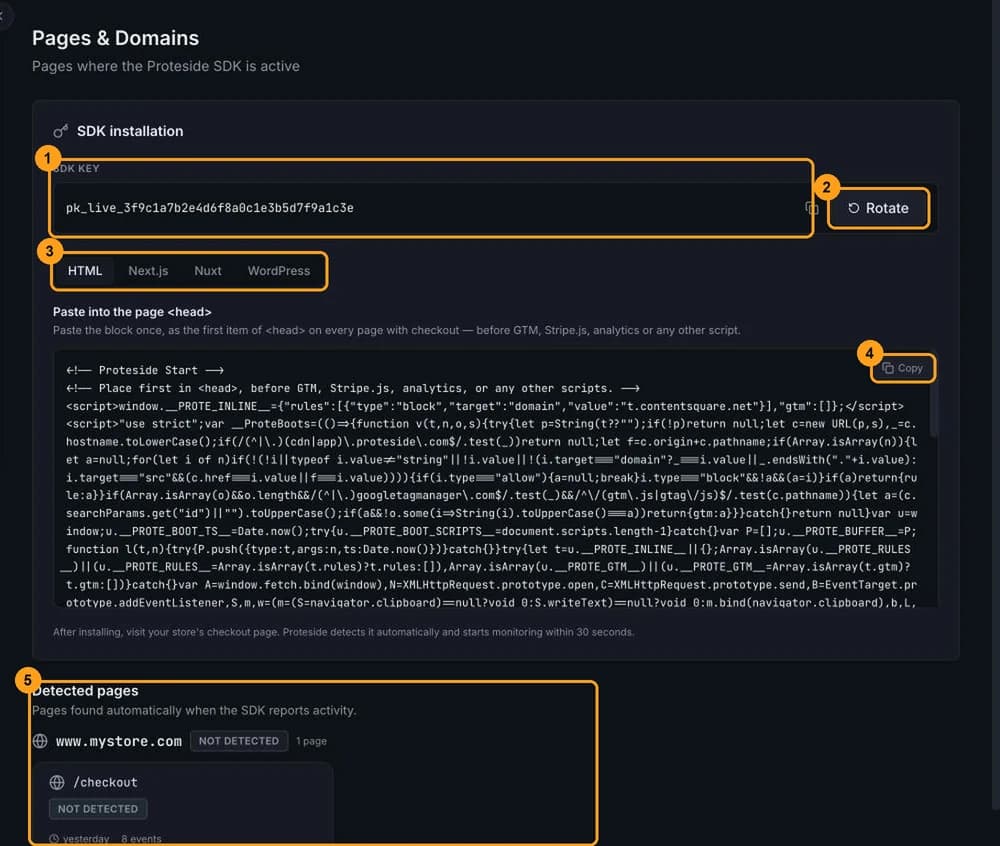
All roles can open the screen and copy the key and the snippet.
SDK key
The SDK key (1) identifies the store to the SDK. It has the format pk_live_ followed by 32 hexadecimal
characters, for example pk_live_3f9c…. Use the icon next to it to copy it.
It's a public key: it goes into the store's HTML, and any visitor can see it. It doesn't give access to the dashboard or the API. For integrations, use API tokens, which are secret.
Rotate the key
Rotate the key if you want to invalidate an old installation, for example after migrating platforms or if the key is being used on a site that isn't yours.
Open the rotation
Click Rotate (2). The window lists what will happen: a new key is generated immediately, the old key keeps working for 24 hours and the store's snippet needs to be updated.
Confirm
Type ROTATE in the confirmation field and click Change key. The snippet on this screen now shows the new key.
Update the snippet on the store
Copy the snippet again and publish it on all pages where the SDK is installed, within the 24 hours.
After 24 hours, the old snippet stops working without warning
Once the deadline passes, the old key is no longer accepted: pages still using the old snippet stop sending events and lose monitoring. The dashboard only shows this later, through the Proteside not detected indicator, SDK Health or an SDK silent alert. During the 24 hours, both keys work, so SDK active doesn't confirm the rotation: open each page and check that the published snippet already has the new key, as shown in Verify the installation.
The Rotate button appears for everyone, but only owners and admins can complete the rotation. For the other
roles, the window shows the Forbidden error on confirmation.
Copy the snippet
The snippet is the block you paste into the <head> of your checkout pages. It already includes the store's key,
the release channel and the active blocking rules.
- Choose the tab for your platform (3): HTML, Next.js, Nuxt or WordPress. For other platforms, use HTML.
- Click Copy (4).
- Paste it as the first item in the
<head>, before Google Tag Manager, Stripe.js and any other script.
The full walkthrough, with what each part of the snippet does, is in Installing the snippet.
Paste the snippet again after changing rules, GTM or channel
The snippet keeps a copy of the blocking rules, the allowed GTM containers and the release channel from the moment it was copied. What's already published on the store doesn't change by itself. After changing Rules, the GTM container list or the channel in Payment protection, copy the snippet again and publish it.
When the store uses the latest channel, the snippet area shows the latest channel badge.
Detected pages
The Detected pages section (5) is built automatically from what the SDK sends. You don't need to register anything.
- Pages are grouped by domain. Each domain shows SDK active (some page had activity in the last 24 hours) or Not detected, and the number of pages.
- Each page shows the path, the status, the number of open alerts in the last 30 days, when the last event happened and how many events arrived in the last 30 days.
- Only pages with activity in the last 30 days are included. A page with no events in that period drops off the list.
- The Domain not reported group collects old events, from before the SDK reported the full URL. They move to the right domain as new activity comes in.
If the list is empty ("No pages detected yet"), install the snippet and open the store's checkout page. See Verify the installation.
Payment pages are registered through the API
The list above is for information only. To mark which URLs are payment pages (which counts toward plan usage and reports), use the API. As long as no payment page is registered, every pageview with the SDK counts toward plan usage.