 Proteside
 Scripts
Review, authorize and block the scripts that run on your payment pages, and track the integrity of each one.
The Scripts page is the inventory of every script seen on the pages where the SDK is installed. PCI DSS 4.0, requirement 6.4.3, asks for exactly this: know which scripts run on the payment page, have a justification for each one and make sure they don't change without review. Requirement 11.6.1 asks for changes to be detected. That's the job of the Integrity tab.
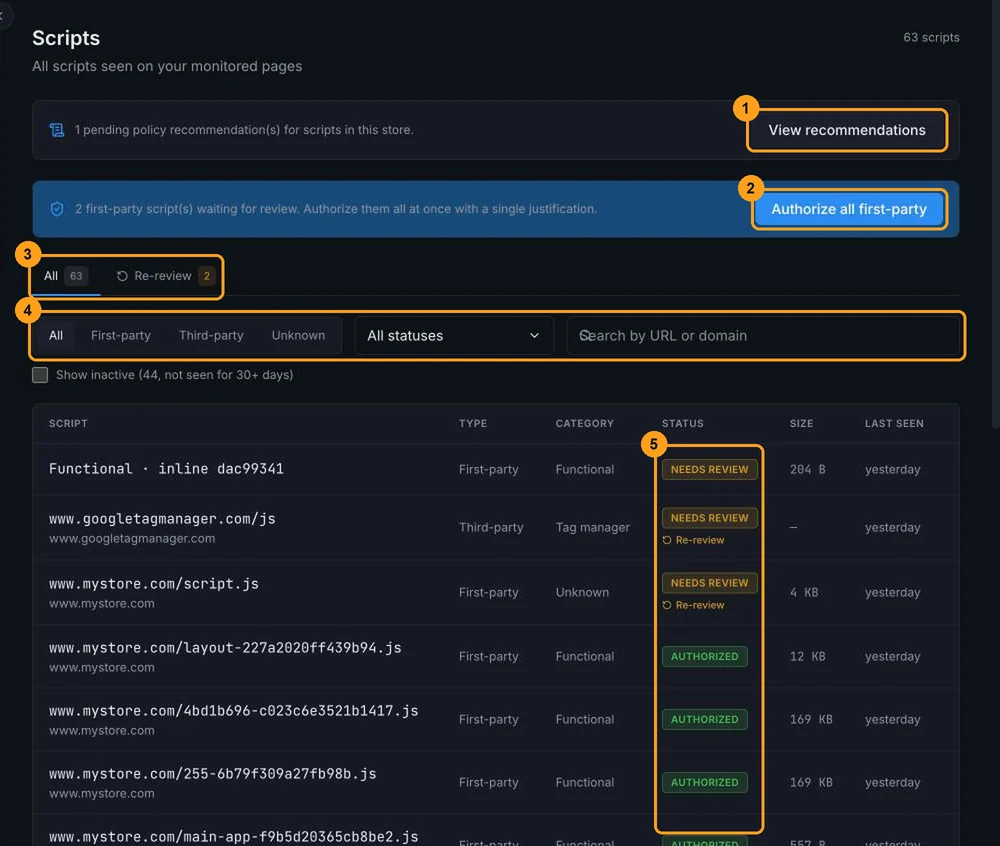
Two notices may appear at the top of the page:
- View recommendations (1): there are decisions suggested by approval policies waiting for you.
- Authorize all first-party (2): there are scripts from the store itself waiting for review. See how to use it below.
How the inventory is built
The inventory is fed by the SDK during customer sessions and by Proteside's verifiers (the synthetic verifier and the server-side verifier, which recalculates the hash of external scripts every 6 hours). Each script address becomes a row. Inline scripts (written inside the HTML) are identified by their content.
The Proteside SDK shows up in the inventory already authorized, with the Automatic method.
Types
| Type | Meaning |
|---|---|
| First-party | Inline script or script served from the store's domain (including subdomains). |
| Third-party | Script from a known vendor, listed in the Proteside catalog. |
| Unknown | Script from another domain that isn't in the catalog. Deserves closer attention. |
Categories
Payment, Analytics, Advertising, Functional, Auth, Tag manager and Unknown. The category comes from the SDK or from the vendor catalog. Inline scripts and well-known libraries served by the store itself (jQuery, WooCommerce, Next.js or Nuxt build files) are classified as Functional.
Status
| Status | Meaning |
|---|---|
| Needs review | Seen on the page and waiting for a decision. This is the status of every new script. |
| Authorized | Approved by a person, by a policy or through the API, with a justification. |
| Blocked | Blocked by a rule. The SDK stops the script when it's inserted by JavaScript. |
| Suspicious | Flagged for suspicious behavior. |
| Malicious | Confirmed as malicious. The row is highlighted in red. |
| Trusted | Legacy status, from before authorization with justification. |
| Allowlisted | Legacy status, from an allow rule. |
Today no dashboard flow marks a script as Suspicious or Malicious, and there's no button for it. Day to day, you'll work with Needs review, Authorized and Blocked.
Markers may appear next to the status (5):
- ↺ Re-review: the script's content changed and it needs a new decision.
- Mismatch: the current content is different from what was authorized.
- Authorization expired: the authorization's validity period has ended.
- Review in N days: the authorization expires in less than 14 days.
Find a script
Use the All and Re-review tabs (3) and the filters (4):
- All / First-party / Third-party / Unknown filter by type.
- All statuses filters by status. Each option shows a hint explaining what it means.
- Search by URL or domain searches the address, the domain and the script name.
The list shows scripts that need review first, then the most recently seen ones, 50 per page. The filters are stored in the page address: you can copy the link and send it to someone on your team so they get the same view.
Click any row to open the details panel, with the hash, size, when the script was first and last seen, type, category and status. The Pages field shows the last page where the script was seen, not all of them. For inline scripts, the Script content block shows the first 8 KB of code, collected by the synthetic verifier.
Review and authorize a script
Authorizing means recording that you know the script, know why it's on the page and accept that it runs. The justification is stored as evidence for requirement 6.4.3.
Open the script
Click the script's row, or open the row's … menu and click View details.
Check the Authorization tab
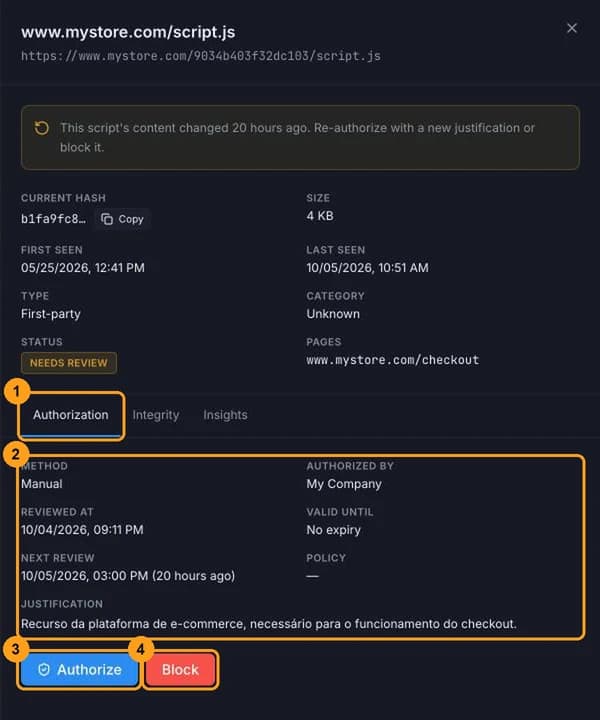
The Authorization tab (1) shows the latest decision (2): Method, Authorized by, Reviewed at, Valid until, Next review, the Policy that decided (if any) and the Justification. A script that has never been reviewed shows "This script has not been reviewed yet".
Click Authorize
Click Authorize (3). If the script is already authorized, the button is called Re-authorize.
Write the justification and choose the validity
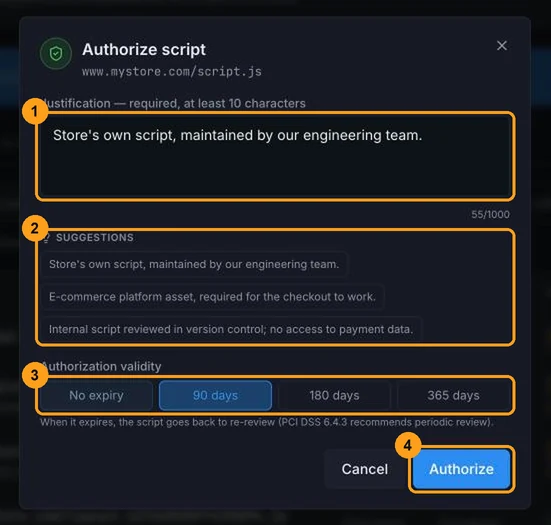
Fill in the Justification (1), with at least 10 characters. The Suggestions (2) offer ready-made text for the script's category; clicking one replaces whatever you've written. Under Authorization validity (3), choose No expiry, 90 days, 180 days or 365 days. When the validity ends, the script goes back to Needs review. PCI DSS recommends periodic review.
Confirm
Click Authorize (4). The script moves to Authorized and the current hash becomes the authorized hash, which is the reference used to detect changes.
Every decision is recorded with author, date, justification and validity, and appears in the PCI DSS evidence and in the audit log.
Authorizing doesn't unblock anything in the browser
An authorization is a record of a decision; it isn't sent to the SDK. The only effect in the browser is that active block rules matching the script (by domain, URL or hash) are deactivated. If the script was blocked by a domain rule, authorizing it unblocks the entire domain. The confirmation message may say "1 block rule(s) deactivated" even when there was no rule; check in Rules.
Authorize all first-party scripts
In the first week, most of the inventory is usually scripts from the store itself. Instead of authorizing them one by one:
Click Authorize all first-party
The button (2) appears when there are First-party scripts with the Needs review status.
Write a single justification
The same justification and the same validity apply to all of them. Use the "First-party" suggestions if you like.
Confirm
Click Authorize. The authorization applies to all of the store's pending first-party scripts, not only the ones shown on the current page or filter.
Block a script
Choose Block
In the row's … menu, or in the details panel, click Block (4 in the Authorization tab screenshot).
Record the reason
The justification is optional when blocking, but recording the reason helps with audits.
Blocking an external script blocks the entire domain
For scripts from another address, the rule created is a domain rule, covering all subdomains. Every script from that domain stops loading, including the ones you authorized (they still show as Authorized in the inventory). If the script is First-party and on the store's domain, the rule blocks the store's scripts inserted by JavaScript. To block a single file, go to Rules, deactivate the domain rule that was created and add a Block rule with the Script URL target.
Blocking an inline script doesn't stop it in the browser
For inline scripts, the rule created is by content hash, and the SDK doesn't apply this type of rule yet. The script shows as Blocked in the inventory and the rule appears as active, but the code keeps running. To stop an inline script, remove it from the HTML, the store theme or the tag manager.
Scripts written directly in the page HTML run before the SDK loads and can't be stopped in the browser. When this happens with a blocked script, the inventory shows a yellow warning. The fix is the same: remove the tag from the HTML or the theme. Scripts inserted by JavaScript, including Google Tag Manager tags, are blocked before they run.
To undo a block, click Authorize on the blocked script: the matching block rule is deactivated.
Integrity and hash
The hash is the fingerprint of the script's content (SHA-256). When you authorize a script, the hash at that moment is stored as the authorized hash. If the content changes later, Proteside notices.
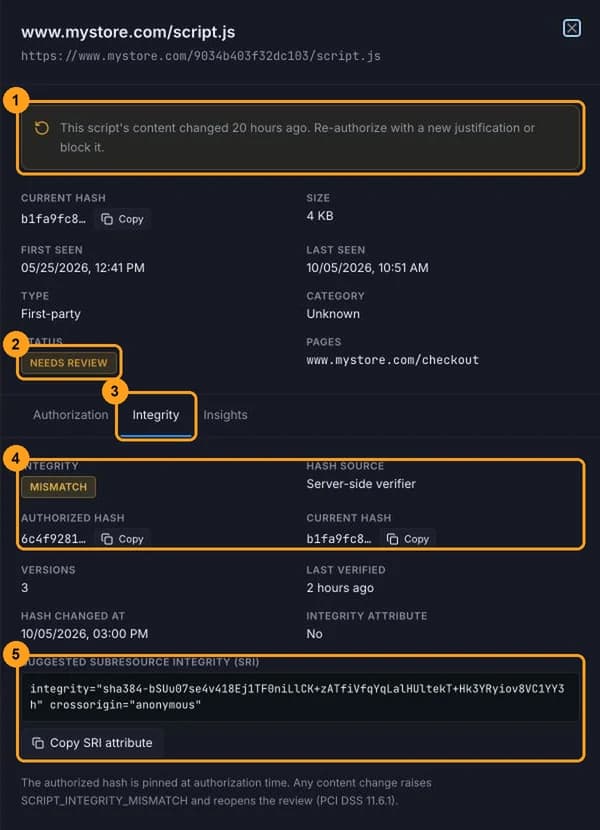
What happens when the content of an authorized script changes:
- Integrity becomes Mismatch and the panel shows a warning at the top (1).
- The script goes back to Needs review (2) and enters the Re-review tab.
- A high-severity Script Integrity Mismatch alert is opened in Alerts.
On the Integrity tab (3) you compare the Authorized hash with the Current hash (4) and see:
| Integrity | Meaning |
|---|---|
| Intact | The current content is the same as the authorized one. |
| Mismatch | The content changed since it was authorized. |
| Pending | Script from the store's domain with no hash calculated yet. |
| Monitored | Third-party script whose content the browser can't read; it's tracked by the server-side verifier. |
| Blocked | The script is blocked. |
Hash source tells you who calculated the value: Inline content, Browser fetch (CORS), Server-side verifier, Synthetic verifier or Unavailable. The tab also shows Versions, Last verified, Hash changed at, whether the script has an integrity attribute, the GTM container and the Vendor, when available.
Suggested SRI
When the verifier can calculate it, the tab shows the Suggested Subresource Integrity (SRI) (5). Click
Copy SRI attribute and paste the attribute into the script tag on your site. With it, the browser itself refuses
to run the file if the content changes.
Only use SRI on files with fixed content, such as those with the version in the address. If the vendor updates the file at the same address, the browser stops loading it.
Handle re-review
Open the Re-review tab
The Re-review tab (3 in the list screenshot) shows the scripts whose content changed. The panel opens directly on the Integrity tab.
Understand the change
Compare the hashes and, if possible, confirm with the vendor or your team what changed (a new version, a tag manager setting).
Expired authorizations don't show up in the Re-review tab
When an authorization's validity ends, the script goes back to Needs review, but it doesn't appear in the Re-review tab. To find these scripts, use the All tab with the Needs review status filter. The Re-review tab can also list never-authorized scripts whose content changed.
Inactive scripts
Scripts not seen for more than 30 days are hidden. To see them, check Show inactive. They appear with the Inactive badge. The total at the top of the page and the All tab counter include inactive scripts.
Who can authorize and block
Only the store's owners and admins can authorize, re-authorize and block. Members and viewers can see the inventory and the details, but the action buttons don't appear for them.