 Proteside
 Team
Invite people to the store, set each person's role and remove access.
In Settings → Team you see who has access to the selected store and manage invitations. Access is per store: someone who joins one store doesn't automatically get access to the organization's other stores.
Roles
| Role | What they can do |
|---|---|
| Owner | Everything, including changing other people's roles and adding stores. Whoever creates the store is the owner; you can't invite or promote someone to owner. |
| Admin | Changes store settings, authorizes scripts, creates rules, manages notification channels, invites and removes people. Can't change roles. |
| Member and Viewer | Read-only: they see every screen, but can't change anything. |
Some actions are exclusive to the person who created the organization: creating API tokens and managing the subscription.
In Portuguese, the Viewer role is called Leitor on the dashboard and Visualizador in the invitation email and page.
Invite someone
Owners and admins can invite.
Open the invitation
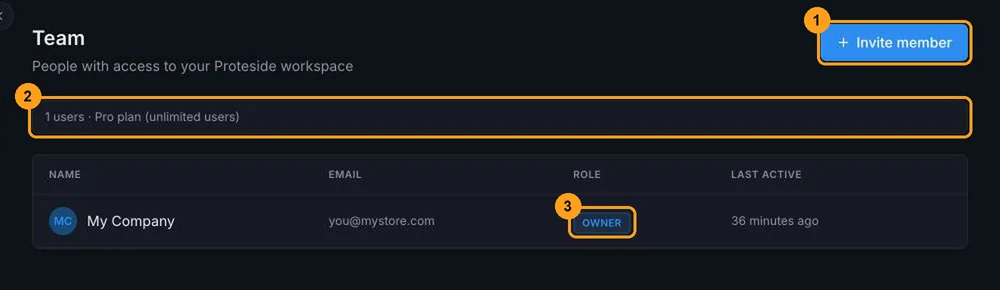
Click Invite member (1). The banner next to it (2) shows how many users the store already has and the plan limit.
Fill it in and send it
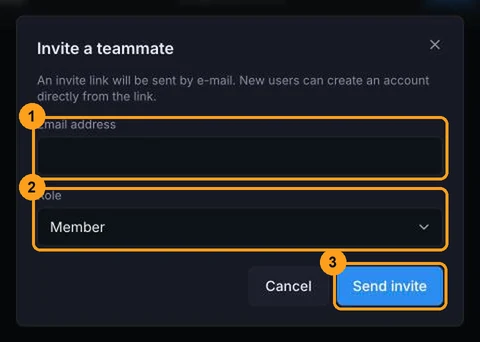
Enter the Email address (1), choose the Role (2) (Admin, Member or Viewer; the default is Member) and click Send invite (3).
Track the invitation
The person receives an email with the Accept invitation button. The link is valid for 48 hours. Until they accept, the invitation appears in the Pending invitations card, where you can:
- Resend invite: sends a new link, valid for another 48 hours, and invalidates the previous one. Reload the page to see the updated invitation in the list.
- Revoke invite: invalidates the link.
The invitation email is sent in the language of the person who sent the invitation.
User limit per plan
Each plan has a maximum number of users per store, including the owner. Pending invitations don't count.
| Plan | Users |
|---|---|
| Essential | 1 |
| Standard | 3 |
| Growth | 10 |
| Pro and Enterprise | unlimited |
On Essential, you can't invite anyone
On the Essential plan, and on accounts with no active plan, the limit is 1 user, who is already the owner. The Invite member button is disabled with the Limit reached badge. To work as a team, change plans in Billing.
The limit applies to each store separately: with two stores on Standard, each one can have up to 3 users.
Accept an invitation
If you received an invitation:
Open the link
Click Accept invitation in the email. The page shows the store, the domain, the invited email and the role.
Sign in or create your account
Click Accept invitation. If you aren't signed in, Proteside takes you to sign-in (if you already have an account) or to sign-up. Use the same email the invitation was sent to: with a different email, the invitation is rejected.
Choose the store
After you accept, the dashboard opens. If it opens on another store, choose the new store in the store switcher at the top.
If the store doesn't appear after sign-up
When you create your account from the invitation, it's accepted automatically, but only if you sign up with the same email as the invitation, in the same browser and the same tab. If the store doesn't appear in the switcher, open the link in the email again and click Accept invitation while signed in. If the link has expired, ask for a new invitation.
If the page shows Invite unavailable, the link has expired, was revoked, was replaced by a resend or has already been used. Ask the person who invited you for a new invitation.
Change a role
Only the owner can change roles. On the person's row (3), open the ⋮ menu and choose the new role under Change role. The owner's role can't be changed.
Remove someone
Owners and admins can remove people. On the person's row, open the ⋮ menu, click Remove from store and confirm. The person loses access to this store immediately; access to other stores doesn't change. The removal is recorded in the Audit log.
Admins can remove other admins
The owner can't be removed, but an admin can remove another admin and even themselves. Give the Admin role only to people who need it.