 Proteside
 Approval policies
Automatically authorize, block or send scripts to review using criteria you define.
Reviewing every script by hand doesn't scale. Approval policies are declarative rules that decide on the scripts in the inventory: Authorize, Block or Review. Each decision records the policy's justification on the script, so the automation still counts as evidence for PCI DSS 4.0, requirement 6.4.3.
In the plans, automatic approval policies are listed as a feature from Growth upward. Every account starts with the default policies described below.
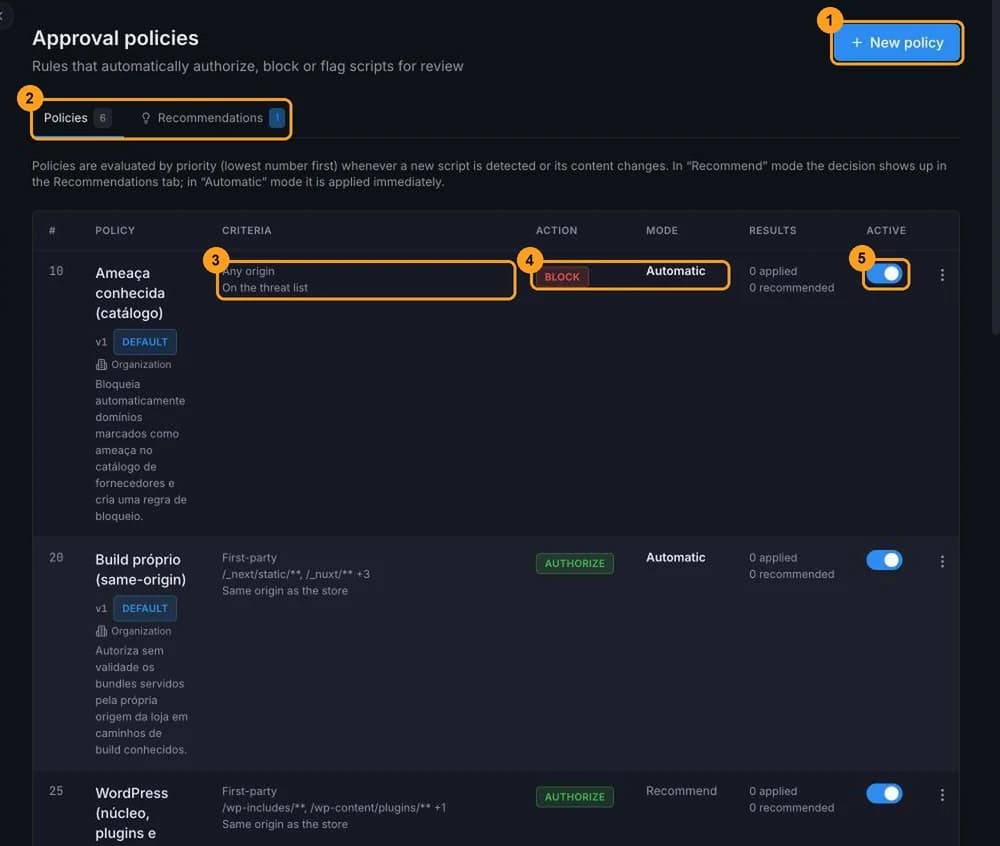
How a policy decides
- Policies are evaluated by priority, from the lowest number to the highest. The first active policy that matches the script decides.
- Organization and store policies are evaluated separately. If both match, the store policy wins, except when the organization policy blocks: an organization block always prevails.
- In Automatic mode, the decision is applied right away. In Recommend mode, it becomes a suggestion in the Recommendations tab, waiting for your confirmation.
Policies run on their own at two moments: when the SDK reports scripts awaiting review (new scripts or scripts whose content changed) and, every hour, for scripts whose authorization has expired.
Creating or editing a policy doesn't re-evaluate existing scripts
A new or changed policy only applies to the next scripts that come in for review. To apply it to the current inventory, use Apply now in the policy's menu.
Default policies
Every organization gets six policies, with Organization scope. The names stay in Portuguese whatever the interface language.
| # | Name | Action | Mode | What it does |
|---|---|---|---|---|
| 10 | Ameaça conhecida (catálogo) ("Known threat (catalog)") | Block | Automatic | Blocks scripts from domains flagged as a threat in the Proteside catalog. |
| 20 | Build próprio (same-origin) ("Own build (same-origin)") | Authorize | Automatic | Authorizes, with no expiry, the store's build files (/_next/static/**, /_nuxt/**, /static/js/**, /build/**, /assets/**). |
| 25 | WordPress (núcleo, plugins e temas) ("WordPress (core, plugins and themes)") | Authorize | Recommend | Suggests authorizing, for 180 days, WordPress scripts served by the store. |
| 30 | PSP da loja ("Store PSP") | Authorize | Automatic | Authorizes, for 180 days, the script of the payment provider configured for the store, if it's not on the threat list. |
| 40 | Analytics, ads e tag managers do catálogo ("Analytics, ads and tag managers from the catalog") | Authorize | Recommend | Suggests authorizing, for 90 days, well-known analytics, advertising and tag tools. |
| 50 | Terceiro desconhecido (cross-origin) ("Unknown third party (cross-origin)") | Review | Recommend | Keeps scripts from other domains in review. |
Default policies show the Default badge. You can edit and deactivate them, but not delete them.
Criteria and conditions
The script must match all the criteria and conditions you fill in (3). A policy with no criteria applies to any script.
| Criterion | Matches when |
|---|---|
| Origin | The script is First-party, from a Known vendor in the catalog, or Any origin. |
| Categories | The script's (or vendor's) category is one of those selected. |
| Domains | The script's domain is one of those listed, or a subdomain of one. |
| Path patterns | The script's path matches the pattern. * matches any segment without /, ** matches anything and ? matches one character. |
| Vendors | The catalog vendor, given by its primary domain (for example stripe.com). |
| Condition | Matches when |
|---|---|
| Same origin | The script is from the store's own domain (Same origin as the store) or from another one (External origin). |
| Does not access sensitive fields | The script hasn't accessed card or Pix fields in the last 30 days. |
| Not on the threat list / On the threat list | The domain is or isn't on the catalog's threat list. |
| Has integrity attribute (SRI) | The script tag has the integrity attribute. |
| Is the store's configured PSP | The script comes from the payment provider configured in Payment protection. |
| Minimum prevalence | The vendor appears in at least this fraction of Proteside stores (0 to 1). A script without a vendor counts as 0. |
| Maximum size (KB) | The script is up to this size. A script with an unknown size does not match. |
Action and mode
- Action (4): Authorize, Review (sends it back to Needs review) or Block.
- Mode (4): Recommend asks for confirmation; Automatic applies without intervention.
- Authorization validity: No expiry, 30, 90, 180 or 365 days. When it expires, the script goes back to review and the policies run again.
- Justification template: the text recorded on each script the policy decides. It accepts
{domain},{vendor}and{path}. Without a template, the default text isPolítica "<nome>" aplicada a <domínio e caminho>.
Blocking by policy blocks the whole domain
When a policy blocks an external script, it creates a block rule by domain, which covers every script from that domain and its subdomains. For inline scripts, the rule created is by hash and has no effect in the browser. See Rules.
Create a policy
Click New policy
Click New policy (1 in the list screenshot). The form opens in a side panel.
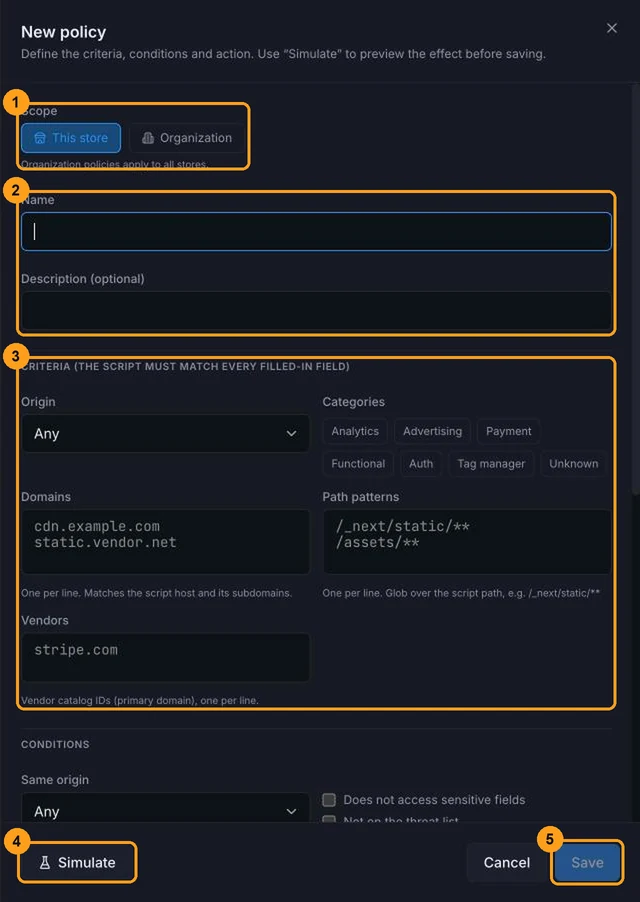
Choose the scope
In Scope (1), choose This store or Organization (applies to every store). You can't change the scope later.
Give it a name
Fill in the Name and, if you like, the Description (optional) (2). The name can't be repeated within the same scope.
Define criteria and conditions
Fill in the Criteria (3) and the Conditions. In Domains, Path patterns and Vendors, enter one item per line.
Define the action
Choose the Action, Mode, Authorization validity, Priority (1 to 10000; default 100) and the Justification template. Start in Recommend mode until you trust the result.
Simulate
Click Simulate (4) to see the effect on the store's current scripts. Nothing is changed.
Save
Click Save (5). To apply the policy to the current inventory, use Apply now.
Simulate
The simulation shows how many scripts Would be authorized, Would be blocked or Would go to review, and how many would stay unchanged. You can simulate a saved policy from the ⋮ → Simulate menu, or a draft with the button in the form.
The simulation may differ from the real result
The simulation ignores blocks from organization policies: a store policy may show scripts that Would be authorized and that Apply now will skip, because an organization policy blocks them. "Unchanged" includes both the scripts that don't match and those already in the action's status.
Apply now
In the policy's ⋮ menu, Apply now applies the decision to every script in the store that matches the criteria and isn't in the action's status yet. Confirm and see how many scripts were changed.
Apply now works even when the policy is deactivated.
Recommendations
When a policy in Recommend mode matches a script, the decision appears in the Recommendations tab. The Scripts page also shows a notice with the View recommendations link.
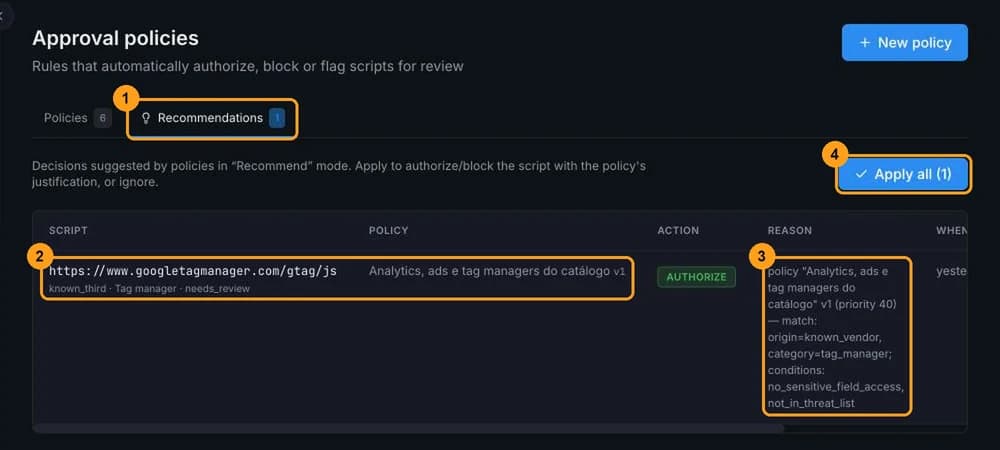
Open the Recommendations tab
Click Recommendations (1).
Review each suggestion
Each row shows the script, the policy that recommended it with its version (2), the action and the Reason (3), with the criteria that matched.
Apply or ignore
Click Apply to carry out the decision with the policy's justification, or Ignore to discard it. Apply all (4) applies all pending ones.
Applied recommendations stay in the list
After it's applied, the recommendation stays in the tab and in the menu counter. Click Ignore to remove it from the list; the decision already applied isn't undone. Review recommendations for scripts already in review (from the default "Terceiro desconhecido" ("Unknown third party") policy) never change anything when applied: ignore them, or deactivate that policy if they create noise.
Edit, deactivate and delete
- Edit (⋮ menu): changing criteria, conditions or the action creates a new version (v2, v3…). Scripts keep the version that decided them.
- Active (5): deactivating removes the policy from automatic evaluation, without changing its version.
- Delete (⋮ menu): permanent. Default policies can't be deleted, only deactivated.
Every change to policies is recorded in the audit log.
Who can change policies
Only the store's owners and admins create, edit, apply, activate and delete policies and handle recommendations. Members and viewers see the policies and can use Simulate.
Any owner or admin of a store can create, edit or delete policies with Organization scope, which affect every store. Agree with your team on who looks after these policies.