 Proteside
 Notifications
Get alerts and reports by email, webhook, Slack or Microsoft Teams, test each channel and track deliveries.
In Settings → Notifications you register channels: the destinations where Proteside notifies you when something happens on the checkout. Each channel has a type, a scope, a minimum severity and a list of events.
Every store starts with the E-mail (padrão) ("Email (default)") channel, which sends to the email of the person who created the store, with a minimum severity of High and above.
Who can make changes
All roles see the channels and the history. Only owners and admins create, edit, turn on, turn off, test and delete channels. The other roles see the notice "Only owners and admins can change channels."
Channel types
| Type | What for | What it receives |
|---|---|---|
| Notify people. Up to 5 recipients. | Only the first occurrence of each new alert, finished reports and tests. | |
| Webhook | Integrate with your system (SIEM, ticketing, automations). | All selected events, as signed JSON. |
| Slack | Post to a Slack channel through an Incoming Webhook. | All selected events. |
| Teams | Post to a Microsoft Teams channel through an Incoming Webhook. | All selected events. |
Email doesn't receive every alert
Email channels only receive New alert, Report ready and tests, even if other events are selected. Script integrity changed, Security header changed and SDK silent notifications never arrive by email. To receive them, create a Slack, Teams or webhook channel.
Slack and Teams messages have fixed text in English. Emails from channels created on this screen are sent in Portuguese.
Add a channel
Open the form
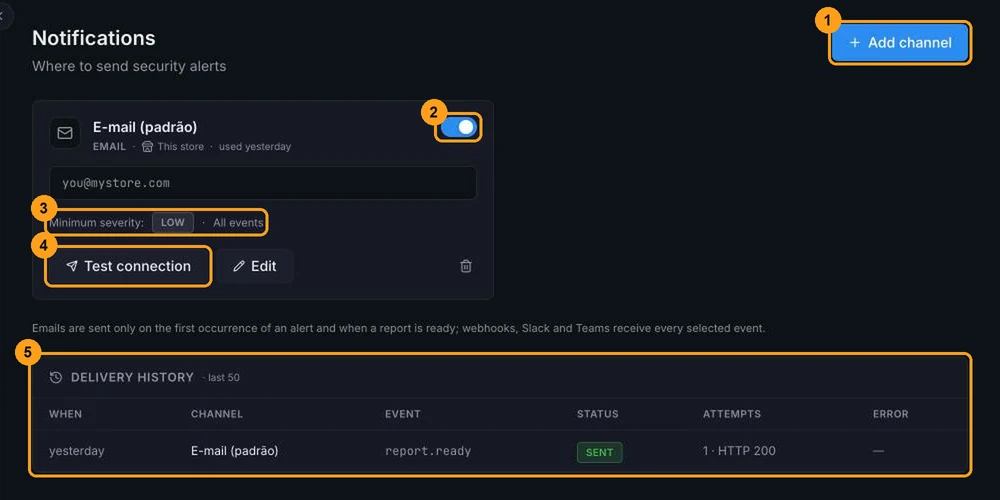
Click Add channel (1).
Choose the type and scope
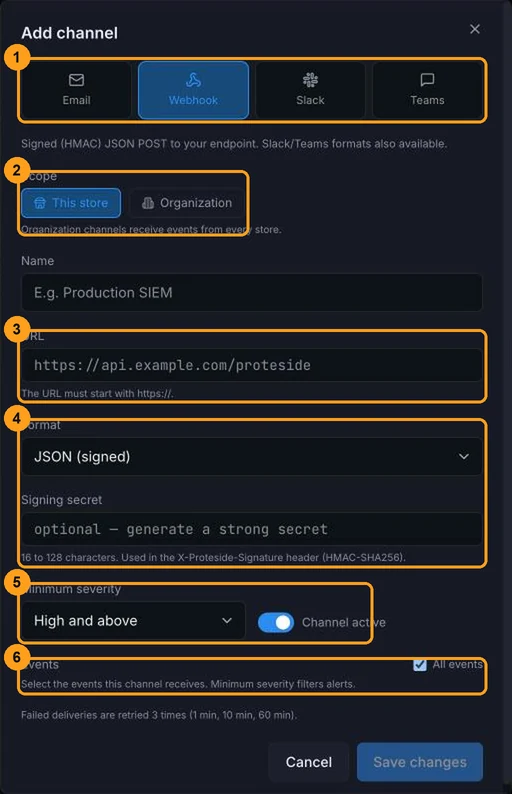
Choose the type (1): Email, Webhook, Slack or Teams. Then choose the Scope (2):
- This store: receives only the selected store's events.
- Organization: receives events from all of the organization's stores.
Type and scope can't be changed later. To change them, create another channel.
Enter the destination
Give the channel a Name (up to 80 characters) and:
- Email: add up to 5 recipients, one at a time, with Add or Enter.
- Webhook, Slack, Teams: paste the URL (3). It must start with
https://. For Slack and Teams, use the Incoming Webhook URL created in Slack or Teams itself.
Configure the webhook
Only for the Webhook type (4):
- Format: JSON (signed) for your system, or Slack (blocks) and Teams (Adaptive Card).
- Signing secret: a random value of 16 to 128 characters. With it, every delivery includes the
X-Proteside-Signatureheader, so your system can confirm the message came from Proteside. Keep the secret safe: it isn't shown again.
Choose the severity and events
Choose the Minimum severity (5) and the Events (6). See the sections below.
Save
Keep Channel active on and click Save changes. Then use Test connection on the channel card.
Without a secret, the webhook isn't signed
The secret is optional in the dashboard. If the field is left empty, deliveries go out unsigned and the card shows "unsigned". Anyone who discovers the URL could send fake messages to your system. Always fill in the secret on JSON webhooks and verify the signature when you receive them, as shown in Verify the signature.
To create or change an Organization channel, you only need to be an owner or admin of the selected store. The change applies to all of the organization's stores.
Minimum severity
The Minimum severity filters alert events by how serious they are: Critical only, High and above, Medium and above, Low and above or All. New channels start at High and above.
The High and above default drops the SDK silent notice
With High and above, medium- or low-severity events never reach the channel. These include SDK silent (the SDK stopped sending data from the store), Security header changed and CSP violations. To know when protection stopped running, set up at least one Slack, Teams or webhook channel with Medium and above.
Script detected, Policy applied and Report ready have no severity and pass any filter.
Events
With All events checked, the channel receives everything. Uncheck it to choose:
| Event | When it arrives |
|---|---|
New alert (alert.created) | An alert is opened for the first time. Repeats of the same alert don't trigger a new notification. |
Alert resolved (alert.resolved) | Only when an SDK silent alert resolves itself because the SDK started sending data again. Resolving an alert manually doesn't trigger a notification. |
Script detected (script.detected) | A new script appeared on the checkout and is waiting for review in Scripts. |
Script integrity changed (integrity.changed) | The content of an authorized script changed. |
Security header changed (header.changed) | A security header on the payment page changed. |
SDK silent (sdk.silent) | A store with traffic went 24 hours without sending SDK data. |
Policy applied (policy.applied) | An approval policy decided on a script. |
Report ready (report.ready) | The weekly PCI DSS report is ready (Monday, 09:00 UTC). |
Script authorized and Script blocked appear in the list, but Proteside doesn't send these events today. To track authorizations and blocks, use the Audit log.
Turn on, edit and delete
- The switch in the corner of the card (2) turns the channel on or off without deleting it. Channels that are off receive nothing.
- The card summary shows the minimum severity and the selected events (3), plus the format and whether there's a signature.
- Edit opens the form. To keep the current signing secret, leave the field blank.
- The trash icon deletes the channel after a confirmation.
Test a channel
Click Test connection (4) on the channel card. Proteside immediately sends a test event, which appears in the
delivery history. If it fails, the error message shows the reason, for example http_404 (the URL doesn't exist) or
timeout (the destination didn't respond in time).
The test is sent even when the channel is off and ignores the severity and event filters. It makes a single attempt, with no retries.
Delivery history
The Delivery history card (5) lists the store's last 50 deliveries and those of the organization's channels: when, channel, event, status (Sent, Failed or Pending), attempts with the HTTP code, and the error, if any. Deliveries are kept for 90 days.
When a delivery to a webhook, Slack or Teams fails, Proteside tries again up to 3 times, about 1, 10 and 60 minutes later. Retries run in 5-minute cycles, so they can be a few minutes late. After the last failure, the delivery stays as Failed and isn't resent; the channel stays active.
Details on the message format, the signature and retries are in Webhooks.