 Proteside
 SDK Health
Confirm the SDK is receiving real customer traffic and find out quickly when it stops reporting.
Protection only exists where the SDK is running. The SDK Health page shows whether the SDK is reporting real customer traffic on the payment pages, separate from the synthetic check run by Proteside, and which domains have stopped reporting.
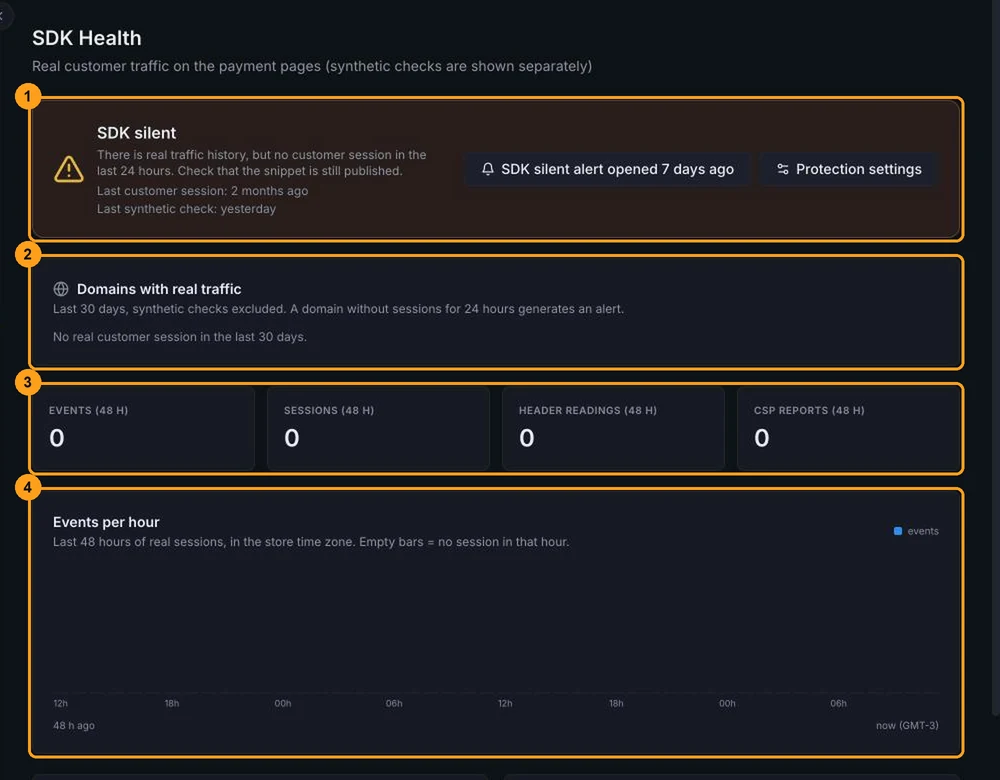
SDK status
The bar at the top (1) shows the current status, with the date of the Last customer session and the Last synthetic check.
| Status | Meaning | What to do |
|---|---|---|
| SDK active | Real customer sessions reported in the last 24 hours. | Nothing. |
| SDK silent | There's a history of real traffic, but no customer session in the last 24 hours. | Check that the snippet is still published (see below). |
| SDK not detected | No events received yet. | Install the snippet on the payment pages. |
| Only synthetic checks | Only the Proteside synthetic verifier sent events; no real customer has gone through the checkout with the SDK. | Check that the snippet is published on the production checkout. |
| SDK paused (developer mode) | Developer mode is on and the SDK doesn't run protections. | Turn off developer mode in Payment protection when you finish testing. |
The shortcuts on the right lead to:
- SDK silent alert opened…: the open alert, when there is one.
- View installation: the installation snippet, in Pages & Domains, for the SDK not detected and Only synthetic checks statuses.
- Protection settings: Payment protection.
Domains with real traffic
The Domains with real traffic panel (2) lists the domains that had customer sessions in the last 30 days, not counting the synthetic check:
- Reporting: there was a session in the last 24 hours.
- No sessions in 24 h: the domain stopped reporting. There's usually an open SDK Silent alert for it.
The Last session and Sessions (30 d) columns help you see whether the domain had activity before it stopped.
Last 48 hours indicators
The four indicators (3) add up the last 48 hours of real traffic:
- Events (48 h): everything the SDK sent.
- Sessions (48 h): submissions that included a pageview. It's an approximation, not the exact number of visitors.
- Header readings (48 h): readings of the page's security headers, used in the PCI DSS evidence.
- CSP reports (48 h): CSP violation reports received.
Events per hour
The Events per hour chart (4) has one bar per hour for the last 48 hours, in the store's time zone. Empty bars mean no session in that hour. Hover over a bar to see the events, sessions, headers and CSP reports for that hour.
A gap in the chart during business hours is a sign that something changed on the site, such as a publish that removed the snippet.
SDK versions
The SDK versions panel shows the versions seen in the last 7 days, with the number of events and when each one was last seen. The count comes from a sample of the events, so use it to compare versions, not as a total.
More than one active version is usually browser or CDN cache after an update. If it persists for days, check whether any page has an old snippet.
Configuration
The Configuration panel shows the Release channel (stable or latest), Developer mode and the Protection mode (Monitor or Block). To change them, go to Payment protection.
Data is aggregated by hour. Reload the page to refresh it.
Synthetic check
On plans with PCI DSS reports (Standard and up), Proteside periodically visits the store's checkout with its own browser, without a customer session. This visit confirms the snippet is on the page, but doesn't count as real traffic: that's why the page shows the Last synthetic check separately, and a store that only receives this visit shows as Only synthetic checks.
SDK Silent alert
Every hour, Proteside checks the domains that had real traffic in the last 30 days. If one of them goes 24 hours without any customer session, it opens an SDK Silent alert (medium severity) in Alerts, one per domain, and sends the notification to the configured channels.
When traffic comes back, the alert is resolved automatically, marked "Auto-resolved".
The check only runs for active stores with a subscription in good standing. It doesn't take developer mode into account: if sessions stop while the SDK is paused, the alert can be opened anyway.
Stores with little traffic can go 24 hours without real customers at checkout. In that case, confirm the installation and resolve or snooze the alert.
When the SDK shows as silent or not detected
Check developer mode
In the Configuration panel, see whether Developer mode is On. If it is, the SDK is paused: turn it off in Payment protection.
Open the checkout
Open the store's payment page in a private window and check that the snippet is in the page source. Theme publishes, platform changes and tag manager changes often remove the snippet.
Test in the browser
In the browser console, run Proteside.getStatus() and check that initialized is true. The step-by-step guide is
in Verify the installation.
Investigate the cause
If the SDK loads but nothing reaches the dashboard, the most common causes are a wrong SDK key, a CSP blocking communication with Proteside or an inactive subscription. See Troubleshooting.
Reload the page
Data is aggregated by hour. After the fix, make a test purchase or visit the checkout and reload SDK Health in a few minutes.
Who can see it
Every role in the store sees this page. It's read-only.