 Proteside
 User guide
What Proteside does, the core concepts and how the dashboard is organized.
Proteside protects your store's payment pages against malicious scripts. It detects skimming (the theft of card data by a script hidden in the checkout) and payment tampering, such as swapping the Pix key or the boleto barcode. From what it observes, it builds the evidence you present in your PCI DSS 4.0 assessment, requirements 6.4.3 and 11.6.1.
This guide shows how to use the dashboard day to day, from your first sign-in to the report for your auditor.
Evidence, not certification
Proteside gathers evidence for requirements 6.4.3 and 11.6.1, but it doesn't certify your store. The dashboard itself says so: "not a compliance certification". Compliance is assessed by your QSA or your compliance team.
How it works
You paste a small piece of code, the snippet, into the <head> of your checkout pages. It loads the Proteside
SDK in each customer's browser. The SDK watches the scripts that run on the page, the forms and the payment data
displayed, and sends what it sees to the dashboard. The SDK doesn't read what the customer types and doesn't send card numbers, CVVs or Pix keys.
See Privacy and LGPD.
In the dashboard, you decide which scripts can run, keep track of alerts and download the evidence reports.
Key concepts
| Concept | What it is |
|---|---|
| Organization | Your account. It holds the plan, billing and people. An organization can have several stores. |
| Store | A protected domain, such as mystore.com. Each store has its own SDK key, scripts, alerts, rules and settings. Everything the dashboard shows belongs to the store selected at the top of the screen. |
| SDK and snippet | The SDK is the Proteside code that runs in the customer's browser. The snippet is the piece of code you paste into the page to load it. |
| Scripts and inventory | Every script that shows up in the checkout goes into the store's inventory. A new script arrives as Needs review until you authorize or block it. |
| Alerts | Warnings about something suspicious: an injected script, tampered Pix, a hijacked form, a script whose content changed, and more. |
| Rules | Direct orders to the SDK to block or allow scripts from a domain or a URL. |
| Policies | Criteria that automatically authorize or block known scripts, or that recommend a decision for you to review. |
| Evidence | The summary of the PCI DSS requirements, the security headers, the periodic verifications and the reports in PDF, JSON and CSV. |
These terms are explained in more detail in the Glossary.
How the dashboard is organized
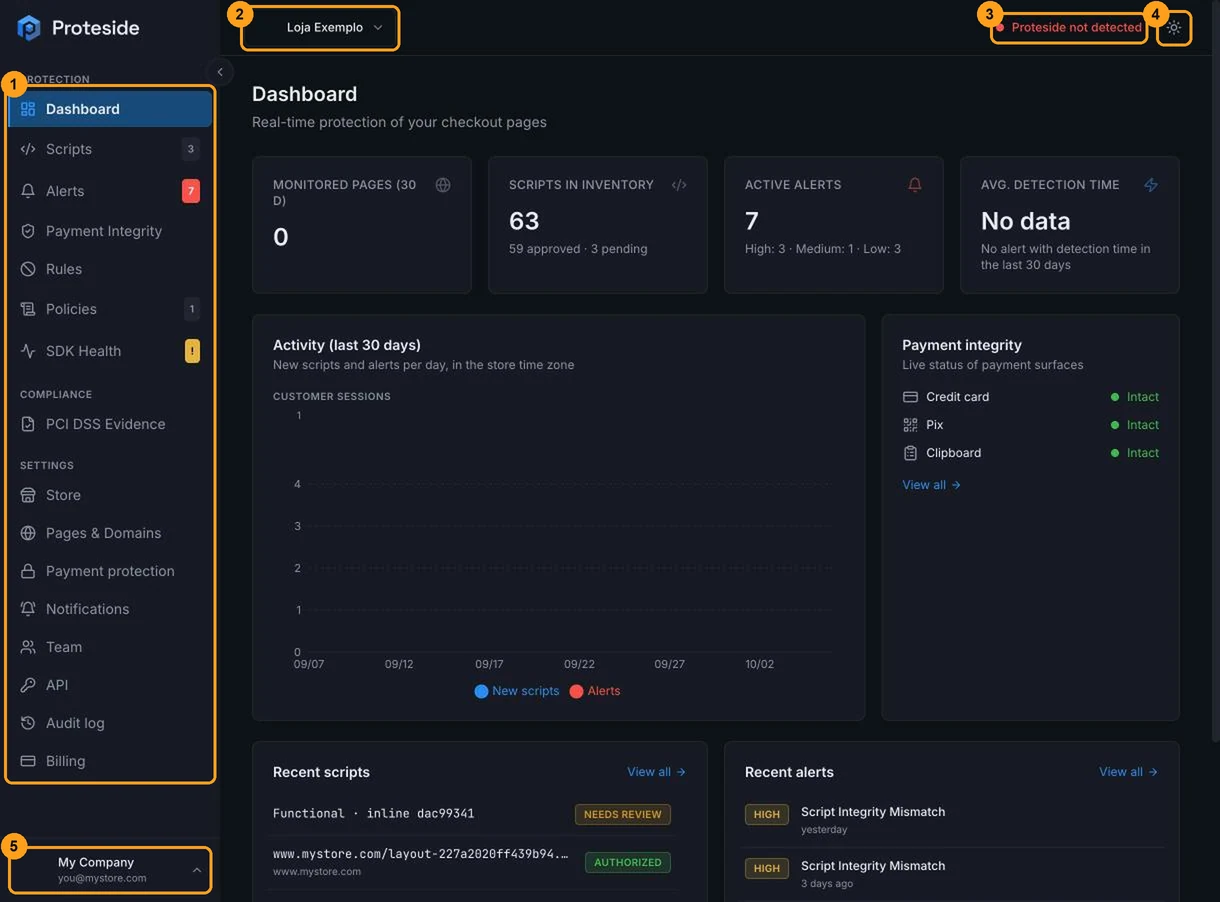
- The sidebar (1) has three sections. Protection groups Dashboard, Scripts, Alerts, Payment Integrity, Rules, Policies and SDK Health. Compliance leads to PCI DSS Evidence. Settings groups Store, Pages & Domains, Payment protection, Notifications, Team, API, Audit log and Billing. The numbers next to the items show what's waiting for you, such as scripts to review and open alerts.
- The store selector (2) switches the store you're viewing.
- The SDK status indicator (3) turns green with Proteside Active when the SDK has received real visits to the store in the last 24 hours. In red, Proteside not detected means the snippet isn't published yet or nobody has opened the checkout in that period. Click it to go to Pages & Domains.
- The theme button (4) switches between light and dark.
- The user menu (5) gives you access to your profile, language, subscription and the Log out button.
On mobile, the sidebar opens from the menu button at the top, and the store selector sits at the top of the menu. The SDK status indicator doesn't appear on small screens.
Recommended flow
Create your account and first store
Choose a plan, sign up and enter the store's domain in the wizard. See Getting started.
Install the snippet
Copy the snippet from Settings → Pages & Domains and paste it as the first item in the <head> of your checkout
pages. See Installing the snippet.
Confirm the SDK was detected
Open the store's checkout and check for the Proteside Active indicator at the top of the dashboard and on the SDK Health screen.
Review the scripts
In Scripts, authorize what's legitimate with a justification and block what you don't recognize. Approval policies help you decide on known scripts all at once.
Handle the alerts
Keep track of Alerts and Payment integrity, and set up Notifications so you hear about problems without having to open the dashboard.
Generate the evidence
In PCI DSS Evidence, check the status of the requirements and download the report for your QSA.
Next steps
Getting started
From choosing a plan to your first reviewed script.
Account and access
Sign-in, password, invitations, stores, language and subscription.
Dashboard
Your store's indicators at a glance.
Scripts
Inventory, authorization and integrity.
Alerts
Investigate, resolve or snooze.
PCI DSS Evidence
Requirements 6.4.3 and 11.6.1, and reports.